Workouts
Human Interface Guidelines › Patterns › Workouts
A great workout or fitness experience encourages people to engage with their current activity and helps them track their progress on their devices.
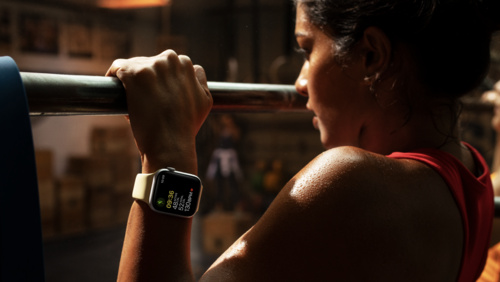
People can wear their Apple Watch during many types of workouts, and they might carry their iPhone or iPad during fitness activities like walking, wheelchair pushing, and running. In contrast, people tend to use their larger or more stationary devices like iPad Pro, Mac, and Apple TV to participate in live or recorded workout sessions by themselves or with others.
You can create a workout experience for Apple Watch, iPhone, or iPad that helps people reach their goals by leveraging activity data from the device and using familiar components to display fitness metrics.
In a watchOS fitness app, use workout sessions to provide useful data and relevant controls. During a fitness app’s active workout sessions, watchOS continues to display the app as time passes between wrist raises, so it’s important to provide the workout data people are most likely to care about. For example, you might show elapsed or remaining time, calories burned, or distance traveled, and offer relevant controls like lap or interval markers.
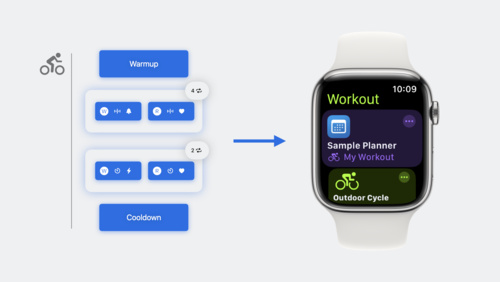
Avoid distracting people from a workout with information that’s not relevant. For example, people don’t need to review the list of workouts you offer or access other parts of your app while they’re working out. Here is an arrangement that many watchOS workout apps use, including Workout:
|
|
|
|
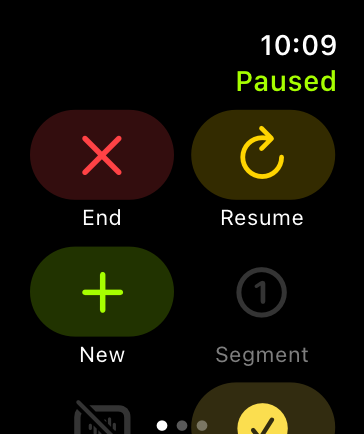
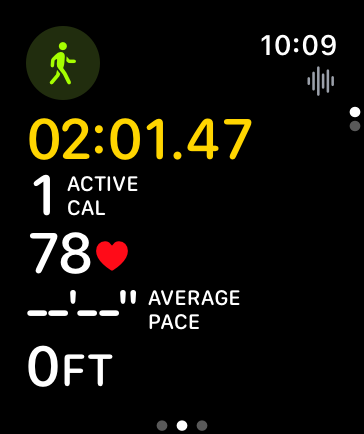
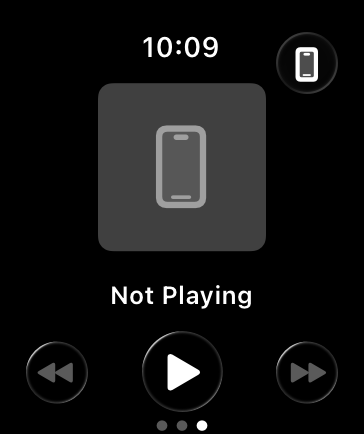
Use a distinct visual appearance to indicate an active workout. During a workout, people appreciate being able to recognize an active session at a glance. The metrics page can be a good way to show that a session is active because the values update in real time. In addition to displaying updating values, you can further distinguish the metrics screen by using a unique layout.
Provide workout controls that are easy to find and tap. In addition to making it easy for people to pause, resume, and stop a workout, be sure to provide clear feedback that indicates when a session starts or stops.
Help people understand the health information your app records if sensor data is unavailable during a workout. For example, water may prevent a heart-rate measurement, but your app can still record data like the distance people swam and the number of calories they burned. If your app supports the Swimming or Other workout types, explain the situation using language that’s similar to the language used in the system-provided Workout app, as shown below:
| Example text from the Workout app | |||
|---|---|---|---|
 |
GPS is not used during a Pool Swim, and water may prevent a heart-rate measurement, but Apple Watch will still track your calories, laps, and distance using the built-in accelerometer. | ||
|
In this type of workout, you earn the calorie equivalent of a brisk walk anytime sensor readings are unavailable. | ||
|
GPS will only provide distance when you do a freestyle stroke. Water might prevent a heart-rate measurement, but calories will still be tracked using the built-in accelerometer. |
Provide a summary at the end of a session. A summary screen confirms that a workout is finished and displays the recorded information. Consider enhancing the summary by including Activity rings, so that people can easily check their current progress.
Discard extremely brief workout sessions. If a session ends a few seconds after it starts, either discard the data automatically or ask people if they want to record the data as a workout.
Make sure text is legible for when people are in motion. When a session requires movement, use large font sizes, high-contrast colors, and arrange text so that the most important information is easy to read.
Use Activity rings correctly. The Activity rings view is an Apple-designed element featuring one or more rings whose colors and meanings match those in the Activity app. Use them only for their documented purpose.
No additional considerations for iOS, iPadOS, or watchOS. Not supported in macOS, tvOS, or visionOS.
Workouts and activity rings — HealthKit
|
|
|
|

Source: https://developer.apple.com/design/human-interface-guidelines/workouts