Boxes
Human Interface Guidelines › Components › Layout and organization › Boxes
A box creates a visually distinct group of logically related information and components.
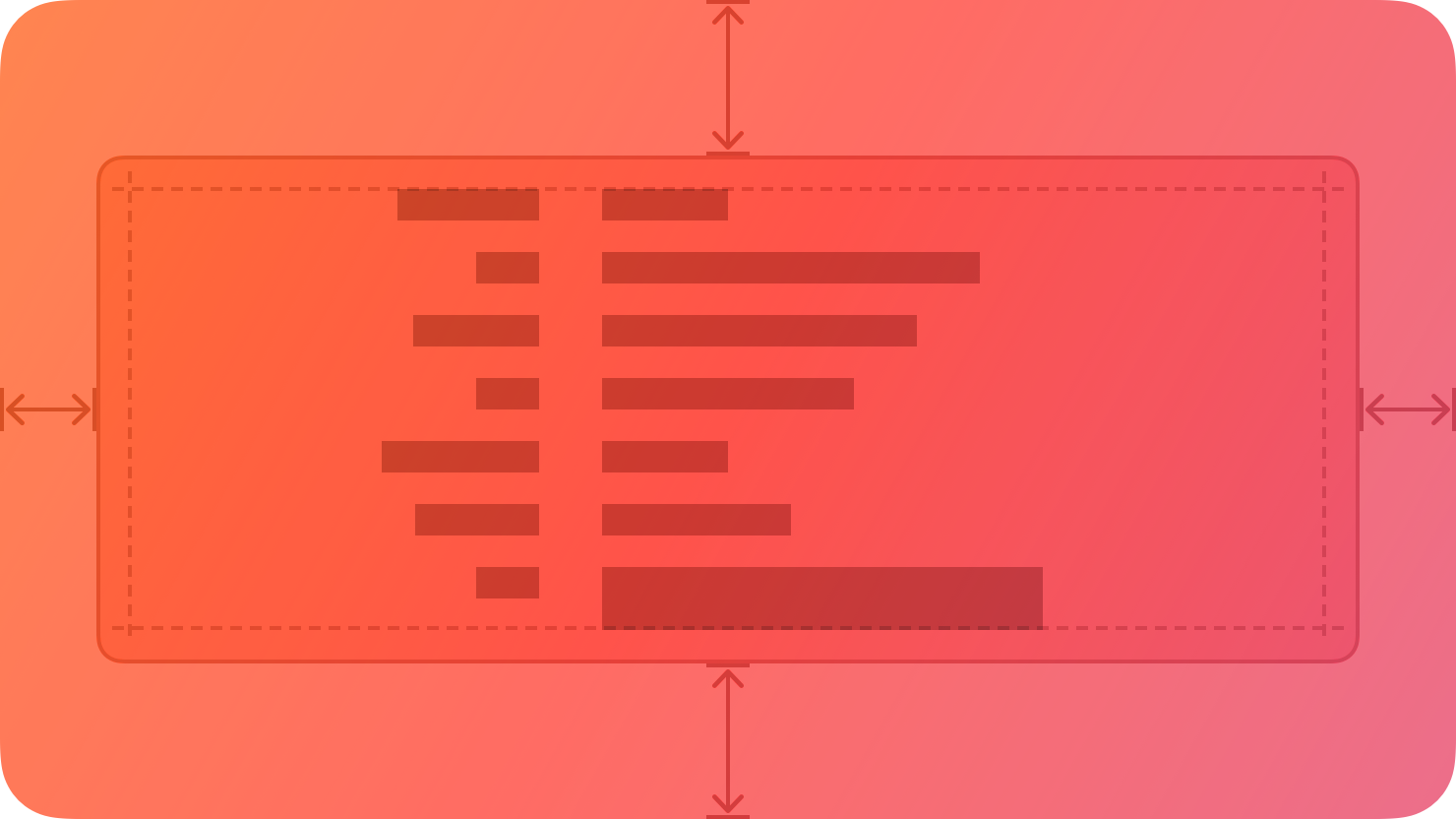
By default, a box uses a visible border or background color to separate its contents from the rest of the interface. A box can also include a title.
Prefer keeping a box relatively small in comparison with its containing view. As a box’s size gets close to the size of the containing window or screen, it becomes less effective at communicating the separation of grouped content, and it can crowd other content.
Consider using padding and alignment to communicate additional grouping within a box. A box’s border is a distinct visual element — adding nested boxes to define subgroups can make your interface feel busy and constrained.
Provide a succinct introductory title if it helps clarify the box’s contents. The appearance of a box helps people understand that its contents are related, but it might make sense to provide more detail about the relationship. Also, a title can help VoiceOver users predict the content they encounter within the box.
If you need a title, write a brief phrase that describes the contents. Use sentence-style capitalization. Avoid ending punctuation unless you use a box in a settings pane, where you append a colon to the title.
No additional considerations for visionOS. Not supported in tvOS or watchOS.
By default, iOS and iPadOS use the secondary and tertiary background colors in boxes.
By default, macOS displays a box’s title above it.
GroupBox — SwiftUI
NSBox — AppKit
Source: https://developer.apple.com/design/human-interface-guidelines/boxes