
A kandev plugin that shows subscription utilization for your agent providers — how much of each rate-limit window (5-hour / weekly / monthly …) is used, with reset times — in the shared page-wide and session top bars and, when enabled, Kandev's global status bar. Data comes from the codexbar CLI (covers ~60 providers: Claude, Codex/OpenAI, Gemini, Copilot, Cursor, Grok, OpenCode, …) plus Augment's own Analytics API.
Settings → Plugins → Provider Usage groups the providers detected on the Kandev host. Each section shows its connection, plan or team, and percentage used. Expand it for quota/reset details and its configuration controls.

Augment settings and phone layout
Augment keeps its API token, account email, budget and plan unit alongside monthly consumption:

The same provider sections adapt to the phone layout:

These settings captures show version 0.8.2 installed in an isolated Kandev instance, using synthetic accounts and usage. See the screenshot gallery and verification notes.
A pill in the shared page-wide top bar (main-top-bar slot) and session top
bar (chat-top-bar slot) shows the selected provider as an icon + %:

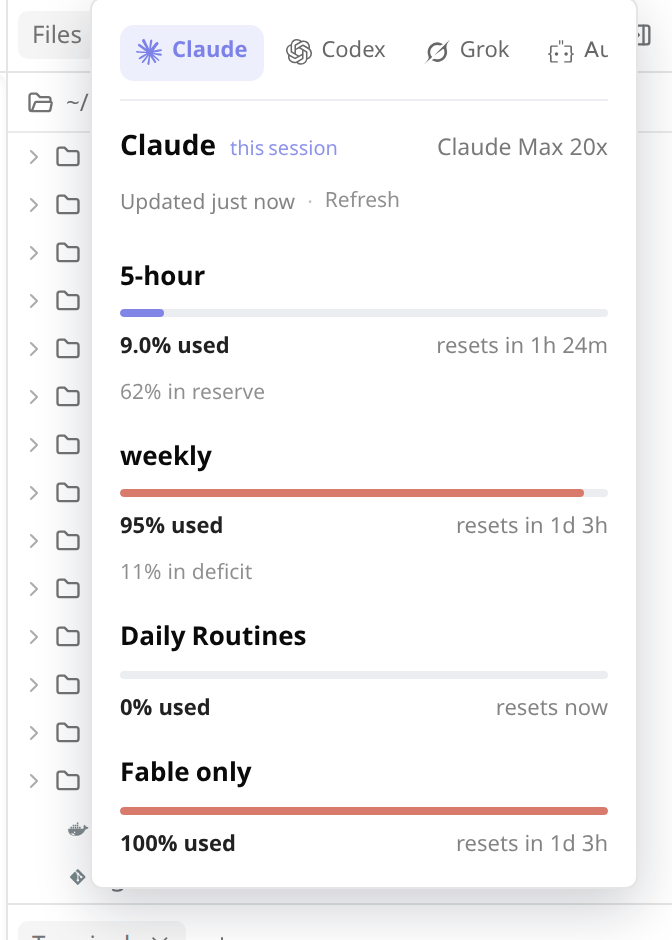
Hover it to open a panel that cycles through every provider. Click a tab to select it; the pill updates immediately and that selection persists across app/browser restarts. If it is unavailable, the panel falls back to the current session's provider, then the first available provider.
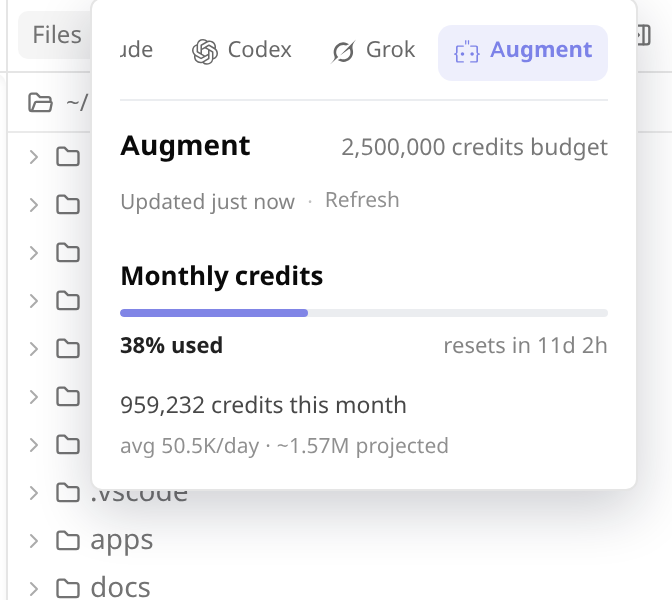
Augment shows month-to-date consumption against a budget, plus average/day and a projected month-end total:
- Provider settings: one section per detected provider, with connection status, plan/team and usage summaries, quota resets, source and freshness. Local discovery loads independently of remote usage, so slow providers do not block configuration. Pause each provider with Show usage, select a named Cursor team, or configure Augment in its own section.
- Shared and session top bars (default): the same widget in
main-top-bar(Home/Kanban, Tasks, and Threads) and the existingchat-top-barplugin slot (kandev ≥ #1827) — a pill for your selected provider (icon + %), each real brand mark rendered monochrome. Hosts that exposehost.ui.Actionrender its icon and percentage in the host-owned toolbar control; older hosts keep the existinghost.ui.Buttonpill. Both paths use the same selected provider and click behavior. Hover to open a panel that cycles through every provider; click to switch, and the selected tab is remembered locally. The shared bar has no task or active session: it reads the same account-wide snapshots and uses the saved provider, then the first available provider. In a session, the current provider remains the fallback before the first available one. On phones, open the listing menu and tap the pill to expand usage inline; provider tabs and Refresh have 44 px minimum touch targets. - Global status display (opt-in):
display_status_bar_modechoosesoff(default),percentage,meter, orboth. The contribution inapp-status-bar-rightrenders the selected compact presentation plus reset context; hover opens the same full provider panel as the session top-bar pill. It adapts to the host's 24 px desktop/tablet bar and its phone Status drawer. It is global provider/account usage only; session IDs only help resolvecurrent. - The Action migration covers the single selected-provider top-bar trigger. The optional status bar stays a read-only multi-provider strip with reset details and a phone drawer. The trigger continues to open the existing provider panel; its rich content is not rendered inside the Action.
- Each provider's panel shows its rate-limit windows as thin bars (calm indigo normally, warming to amber/coral only when high — never a hard red), a reset countdown, plan/source badges, and codexbar's pace summary ("48% in reserve"). Copilot labels its primary window Premium interactions; when CodexBar omits pace but supplies its monthly reset, the plugin derives reserve or deficit against linear calendar-month consumption.
- Codex pace: each quota shows "X% in reserve", "X% in deficit", or "On pace". When CodexBar omits the summary, the plugin compares percentage used with percentage of the reported window elapsed at the usage snapshot. Reserve means usage is below that pace; deficit means it is above. This is distinct from the quota remaining. The phone Status drawer shows pace for its displayed quota, too. Derived pace stays hidden when the usage percentage, duration, or reset is unknown, the window has expired, or less than 3% has elapsed. Scoped extra quotas use their own window data.
- Cursor details: Total, Auto and API usage show the percentage used, with
bars that fill as usage increases, reset times and extra spend.
The backend supplements CodexBar with Cursor's dashboard endpoints,
including Enterprise request allowances and personal spending
caps. Missing metrics say "Not reported"; a failed optional lookup keeps
the available quota visible. Shared team spend is explicitly labelled.
When Cursor reports only
overallSpendCents, it is shown as Total spend rather than being mislabeled as on-demand Extra Usage. Token-based Enterprise teams also show total spend against the effective member limit as a usage bar, with reserve or deficit calculated from the team's reported billing cycle. - Codex manual resets: the provider panel and phone Status drawer show available reset credits separately from the scheduled quota countdowns. A compact summary shows the available count and nearest expiry. Click, tap, or use the keyboard to expand the inventory, sorted soonest first, with calendar dates and exact local timestamps. Redeemed, expired, and unknown-status credits are excluded. Credits without an expiry show "Expiry not reported". Count-only reports stay count-only; Win-CodexBar supplies a summary and the next expiry. Missing reset data leaves the section hidden, while a reported zero is shown as zero. This is display-only; the plugin does not redeem credits.
- Augment is a special case: codexbar can't read it off macOS, so it's fetched directly from Augment's Analytics API. Shows month-to-date consumption as a used-of-budget bar (defaulting to a 2.5M-credit budget for credit plans so it always renders a bar), plus average-per-day and a projected month-end total.
- A background poller refreshes a single snapshot of every provider every
few minutes (configurable); the pill and panel reuse it without running a
provider command on every hover. The first usage request after startup can
wait for the initial poll; settings remain usable while it runs. An explicit
Refresh rebuilds the snapshot. Each refresh tries codexbar's fast
oauthsource first, falling back to the agent CLI only when needed. - Local sign-in: OAuth providers reuse credentials on the machine running
Kandev (
~/.claude,~/.codex, …). Cursor can use its Desktop session, Cursor Agent CLI login, or a configured dashboard cookie; Augment uses an Analytics token.
codexbar ships per-platform release binaries (no npm/npx). The plugin resolves the CLI in this order:
- the codexbar command you set in Settings (a path, e.g.
/usr/local/bin/codexbar); - a
codexbarbinary onPATH; - otherwise it downloads a pinned build once, verifies it against a
bundled SHA-256, and caches it under
~/.config/kandev-provider-usage. Linux uses upstream's fully static musl builds so it does not depend on the host's glibc version. macOS uses the native builds.
Upstream codexbar publishes no Windows CLI. Windows instead downloads the CLI
from Win-CodexBar, a third-party port
that publishes a compatible codexbar-cli.exe; it is pinned and SHA-256 verified
the same way, and versioned separately because that port cuts its own releases.
The CLI ZIP is currently unsigned, so the pinned checksum does not replace code
signing or the need to trust the release publisher.
Nothing has to be installed by hand on any platform.
To update a managed CLI:
- Open Settings → Plugins → Provider Usage.
- Expand Shared settings → Advanced and click Update CodexBar.
- Wait for the version and success message to appear (up to two minutes).
This explicitly opts into the latest stable release from the platform's release
repository. The plugin verifies the archive against GitHub's SHA-256 asset digest
and checks --version before selecting it. The selected version persists across
plugin restarts; normal refreshes reuse it without checking GitHub. The original
pinned build remains the default until you update. Previous binaries stay on disk,
and a failed download, verification, startup check, or selection write keeps the
previous version selected. Re-check refreshes status and usage; it does not
upgrade the CLI.
For a CLI configured in settings or found on PATH, update it with its existing
installation method. The plugin does not replace externally managed binaries.
When that fails, Shared settings → Advanced → Usage connection shows which of those three paths was tried, the raw cause (including the failed command's first stderr line), and a hint naming the fix — no outbound access to github.com, a checksum mismatch, an unwritable cache directory, an unsupported platform, or a configured path that isn't executable. The download is retried on every refresh, so a transient failure clears itself on the next poll or on re-check.
Settings → Plugins → Provider Usage shows one expandable section per detected provider. Detection uses installed CLIs/apps, local credential files, configured connections and successful usage scans. A failed speculative probe does not add a section. Installed providers with an expired login remain visible with their connection error. A local-only scan renders the configuration independently of remote usage checks, including after a plugin restart. Rescan updates the local provider list without running usage commands or discarding your edits; Refresh usage checks provider usage in the background. Slow or unavailable providers do not prevent editing and saving settings.
Collapsed sections show the connection status, plan, selected team when relevant, and a summary of the highest overall quota with a bar that grows as usage rises. Expanded sections show each reported quota and reset time, the data source and freshness, plus setup guidance and expandable diagnostics for unavailable usage. Each section retains its Show usage switch and provider controls. Cursor's named team picker and session cookie live inside Cursor. Augment's token, email, budget and plan unit live inside Augment, when detected or configured. The remaining providers reuse their existing local sign-in. Paused connections retain their section so they can be enabled again.
Shared settings holds the refresh interval and status-bar presentation. Expand Status bar providers to select several named providers, the current session, or all providers. With none selected, the current session is used. Existing selections remain editable even when a provider is not detected. Its Advanced disclosure contains usage color thresholds, the CLI path and CodexBar maintenance. Save settings applies edited fields while preserving other provider settings and masked credentials. Discard changes restores the saved values. The team picker has its own Save team action.
Configuration keys (retained for compatibility with existing installations):
| Key | Meaning |
|---|---|
augment_api_token |
Augment Analytics service-account token (stored as a secret — masked in the UI). Enables the Augment card. Create one at app.augmentcode.com/settings/personal-api-tokens. |
augment_email |
Your Augment org email, used to filter Analytics to your usage. |
augment_monthly_budget |
Budget for the used-of-budget %. Empty = a per-user Analytics override, else a 2,500,000-credit default. |
augment_resource |
credits (default) or usd — which metric your Augment plan bills. |
cursor_cookie_header |
Optional Cursor dashboard Cookie request header, stored as a secret. Overrides automatic Desktop and Agent CLI authentication; must match the account shown by CodexBar. Useful for a remote Kandev host. |
cursor_agent_keychain |
off (default) or on. On macOS, opt in to reading the access token saved by agent login; Keychain may ask once. Linux and Windows Agent auth files are read automatically. |
codexbar_command |
Explicit codexbar command. Empty = auto-detect / auto-download. |
codexbar_poll_minutes |
Background refresh interval (default 5, minimum 1). |
codexbar_providers |
Comma-separated provider ids to poll. Empty = curated local-credential set; "all" = full sweep (slower). |
disabled_providers |
Paused provider IDs, managed by each section's Show usage switch. Their usage stays out of every panel. |
display_pill_providers |
Providers included in the optional global status display, comma-separated. Tokens: current, all, or explicit ids. Empty = current session's provider only. The top-bar pills instead follow the locally remembered tab selection. |
display_status_bar_mode |
off (default) keeps usage in the top bars only. percentage adds icon + percentage to global status; meter adds icon + meter without percentage; both adds meter + percentage. Enabled modes also appear in the phone Status drawer. Requires a Kandev host with app-status-bar slots. |
display_threshold_warn |
A window at/above this % turns amber (default 75). |
display_threshold_high |
A window at/above this % turns red/coral (default 90). |
Saving settings restarts the plugin, so changes take effect immediately; the panel also has a Refresh button for an on-demand update.
Expand Shared settings → Advanced to see whether CodexBar resolved, its
version and the binary in use. Each provider's section shows its own connection
status. The editor renders inline via the host's plugin-settings slot.
The manifest schema remains the validation and secret-masking contract. On hosts that also render the generic schema form, a stylesheet scoped to this plugin's detail page hides that fallback only after the custom editor loads. The fallback stays available if configuration/discovery cannot load or the editor unmounts. A usage-fetch failure leaves the custom controls usable. Config saves use the host's authenticated config API and merge edits into a fresh masked config; the plugin does not maintain a second credential store.
When codexbar isn't working the card explains why: missing when no binary
could be resolved (download blocked, unsupported platform, checksum mismatch),
not working when one was found but wouldn't run. Both show the raw error plus
the next step to take. The same reason also appears in the hover panel, so a
blank pill explains itself without a trip to Settings.

This panel preview uses synthetic data; a narrower allowance can be exhausted while Total Usage remains available. See the phone view and capture notes.
Leave codexbar_providers empty (Cursor is included), or include cursor in
your allowlist. The Cursor panel always preserves the CLI's Total, Auto and API
windows when available. Its compact pill uses Total Usage; a narrower exhausted
API allowance is shown as "Limit reached" in the panel.
Daily Usage shows today's reported usage cost in USD, from midnight UTC
through the latest refresh, in both the provider panel and phone Status drawer.
It sums Cursor's paginated dashboard events, preferring chargedCents (which
already includes Cursor fees), or tokenUsage.totalCents plus cursorTokenFee
when the charged amount is absent. Reported plan-covered costs are included;
this is not necessarily an additional bill. The label explicitly says Today · UTC.
Selected-team requests filter to that team and your member ID. Missing costs,
failed or incomplete history, and unavailable member identity show Not reported;
an explicitly empty day shows $0.00. Fetches are limited to 2,000 events and
five seconds, and yesterday's cached amount is hidden after midnight UTC.
The existing refresh interval also applies to Daily Usage.
If you belong to multiple Cursor teams, expand Cursor in Settings → Plugins → Provider Usage, choose a Team by name and click Save team. Reload teams refreshes the list from your signed-in account. Teams with the same name include their IDs to distinguish them. The panel shows the selected team's name and ID. The plugin checks the session's team memberships, requests that team's spending data, and selects your member row. A failed team lookup reports an error; it never falls back to CodexBar's unscoped quota or to the first team in the list.
With a team selected, included requests use that member's reported request
count and the selected team's per-seat allowance. Extra Usage shows your
spending and personal limit for that team. Auto/API quotas and reset dates are
included only when Cursor's summary identifies the same team; otherwise those
fields remain unreported. An unavailable allowance never becomes a 0% reading.
Choose Account usage (automatic) for the default account usage. Team changes
save separately and refresh usage immediately; other settings and credentials
are preserved. The choice survives restarts and plugin upgrades. Existing
cursor_team_id values are migrated automatically, without selecting the first
team in the list. A missing team stays visibly unavailable until you choose
another team or account usage.
Detailed data is fetched on the background poll and Refresh, then shared by the top-bar panel, status-bar panel and phone Status drawer. Authentication is resolved on the machine running the plugin, in this order:
- Cursor · Session cookie in Kandev's plugin settings, if supplied.
- Cursor's manual cookie in the resolved CodexBar configuration:
CODEXBAR_CONFIG, an absoluteXDG_CONFIG_HOME/codexbar/config.json,~/.config/codexbar/config.json, or the existing legacy~/.codexbar/config.json. An explicitcookieSource: "off"disables automatic details; an empty/invalid manual cookie does not select another account. - Cursor Agent CLI's explicit
CURSOR_AUTH_TOKEN, when inherited by the plugin process. - Cursor Desktop's local
User/globalStorage/state.vscdb: under~/Library/Application Support/Cursoron macOS,$XDG_CONFIG_HOME/Cursor(default~/.config/Cursor) on Linux, or%APPDATA%\Cursoron Windows. - The session saved by
agent login: when Cursor · Agent CLI Keychain is enabled, thecursor-access-tokenitem for accountcursor-userin macOS login Keychain;$XDG_CONFIG_HOME/cursor/auth.json(default~/.config/cursor/auth.json) on Linux, or%APPDATA%\Cursor\auth.jsonon Windows. A macOS Agent configured withAGENT_CLI_CREDENTIAL_STORE=fileuses~/.cursor/auth.json.
When both automatic local sessions are available, Desktop is tried first and Agent CLI is retained as a fallback if that session is rejected. On macOS the plugin leaves Keychain untouched until access is enabled in settings. It then checks that the expected item exists without requesting its secret before the read; macOS may ask the signed-in user to allow that read.
For a remote host, sign into cursor.com in your browser, open DevTools →
Network, select a dashboard request and copy its Cookie request header into
Cursor · Session cookie. Save and refresh. Existing CodexBar manual cookies
are reused, so no duplicate configuration is needed. Credentials stay in the
backend and are never sent to the plugin UI. The account identity is checked
before combining dashboard data with CodexBar's quota.
The plugin reads local Cursor sessions without modifying their database,
credential file or Keychain item, and it never reads the Agent CLI refresh
token. Keep Cursor Desktop or Agent CLI signed in; run agent login again or
renew a manually supplied cookie when it expires. A setup/authentication
problem appears beneath the available Cursor quota.
Cursor account types expose different fields. Enterprise request allowances remain the Total Usage metric, with Auto/API percentages added separately when reported. Personal on-demand spend takes precedence over a team aggregate, including a reported personal zero. Shared allowances/spend are labelled as team data. Dollar values from the dashboard are converted from cents once.
Sources: OpenUsage's Cursor integration
and CodexBar's Cursor provider.
The integration uses /api/usage-summary, /api/usage,
and DashboardService/GetCurrentPeriodUsage. Failed
optional endpoints do not discard working provider data.
Explicit team selection uses /api/dashboard/teams, /api/dashboard/team
and /api/dashboard/get-team-spend, following the
Cursor Usage extension's team requests
and the per-seat quota mapping in cursor-usage-mcp.
It does not assume that the account summary or RPC accepts a team query parameter.
manifest.yaml— usage, discovery, team-selection and CLI-maintenance webhooks, the UI bundle, theapi_read: ["sessions"]capability (to resolve the current session's agent → provider server-side), persistent plugin state for the selected Cursor team, and the validation/secret-masking schema.server/— Go backend half (pluginsdk.Plugin), spawned by kandev over the gRPC plugin contract. Runs a background poller that shells out to codexbar and supplements it with Cursor's dashboard and Augment's Analytics API. Usage webhooks share the cached snapshot; discovery scans local connections without waiting for that poll.ui/bundle.js— hand-written, no-build ES module using the shared host React instance andhost.uicomponents, plus inlined real brand-mark SVGs (monochrome). It registers shared and compatibility chat top-bar, plugin settings, and opt-in global status-right components, and only renders backend payloads.
Use Go 1.26.0 and Node 24. The Node tests use built-in modules and need no npm
dependencies. .kandev-sdk-ref pins the Kandev source used by the Go module
replacement and the host Action contract. This source pin does not set the
plugin's runtime minimum. The manifest remains API v1 and has no declared
min_kandev_version; the UI selects the old Button when Action is absent.
Create the sibling host checkout if needed, then set it to the pinned revision:
if [ ! -d ../kandev/.git ]; then
  git clone https://github.com/kdlbs/kandev.git ../kandev
fi
SDK_REF="$(cat .kandev-sdk-ref)"
git -C ../kandev fetch origin "$SDK_REF"
git -C ../kandev checkout --detach "$SDK_REF"
Keep that checkout at the same revision while running the commands below.
plugin-pack runs inside ../kandev/apps/backend so it uses the SDK module's
own dependency files.
make check-format
go mod tidy
git diff --exit-code -- go.mod go.sum
make vet
make test
make build
make verify-package-host
make verify-package
For a disposable built-package check on a new Action host and the older Button
fallback, follow test/host-smoke/README.md.
Install the tarball via Settings → Plugins → Install plugin → Upload.
For filesystem sideloading, copy the archive directly into the running host's
$KANDEV_HOME_DIR/plugins directory (normally ~/.kandev/plugins), then click
Settings → Plugins → Sync in your authenticated browser. Merely copying
the archive or restarting Kandev does not activate it. Use an archive containing
the target platform's binary; make package-host on Linux cannot run on a Mac.
The equivalent HTTP install, when the instance's authentication is disabled, is:
curl -F package=@kandev-provider-usage-0.10.0.tar.gz \
  http://localhost:8080/api/plugins/install
Authenticated instances require a valid Kandev session or personal access token for this endpoint; the signed-in Upload/Sync flow supplies that authentication. Keep the installed version's directory and config intact when upgrading so the host can preserve credentials and the selected Cursor team.
In Actions → release, run the workflow from main and choose a
patch, minor, or major bump. The workflow serializes releases and checks the
tag, manifest, Makefile and built package versions. It runs format, vet, test
and package checks before it commits metadata or pushes a tag. Pushed tags run
the same checks before the workflow publishes the archive and checksums.txt
as a GitHub Release, which the Kandev marketplace resolves. The checksum file
includes the archive's SHA-256 alongside its internal file hashes.