
Privion is a versatile AI application focused on privacy and offline inferencing, capable of leveraging a multitude of open-source LLMs to perform a range of diverse tasks. Privion's current feature set includes:
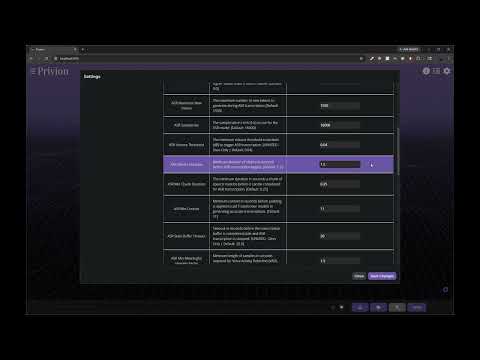
Demo Video - Execute various tools, including controlling real-world appliances and search the web all in one request:
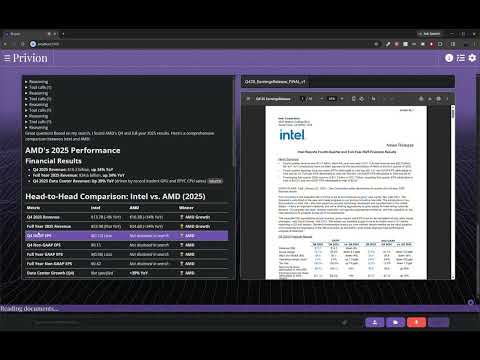
Demo Video - Carry out very sophisticated hybrid RAG, combining semantic, lexical (keyword), and Graph RAG on local documents with live web-search and URL extraction results:
-
Advanced RAG Capabilities:
- Detailed Citations: LLM responses seamlessly incorporate citations & links to specific document pages complete with a document browser comprising all relevant documents for instant cross-referencing
- Semantic + Lexical Searching: Combining the strengths of intent and keyword-based search techniques
- GraphRAG: Fully local, entirely offline custom GraphRAG system heavily leveraging Gemma2-2B to derive deep insights from data pools and provide thorough data analysis capabilities
- Dynamic RAG: Autonomous selection of best RAG technique to respond to a given user query
- Re-ranking: Heavily leverages re-ranking to filter out the best search results for RAG responses
- Cutting-Edge Embedding & Re-ranker Models: Easily swap to the latest and greatest open-source Embedding and Re-ranking models by simply specifying the HuggingFace model IDs
- Advanced, Offline OCR: Full support for Kosmos-2.5 and Docling Standard & VLM OCR pipelines for high-accuracy offline & fully local data-extraction from documents
- Knowledge Domains: Easily create and switch between knowledge-domains to separate data with any level of granularity desired
- Any Document Format: Upload files in virtually any format
- Bulk Uploads: Upload multiple files and entire folders in one go
- Google Drive Integration: Easily connect and sync your GDrive files
-
Butler Mode:
- Control Smart-Home Appliances: Simply ask Privion to turn on/off lights, TVs etc (early development stage)!
-
Advanced LLM Platform:
- Two Inferencing Backends: HF-Waitress and llama.cpp
- Advanced llama.cpp UI - Deploy any GGUF with full UI control over advanced settings:
- GPU-Offloading: Layer count & devices to use
- KV-Cache Control: Unification, Offloading & Data-Type Control
- Parallel Decoding & CPU-Only MoE Settings
- Memory Management: Mlock and Mmap Control
- Custom HuggingFace-Waitress (HF-Waitress) Server with two backends: Transformers & ExLlamaV2
- Support Any LLM from HuggingFace: Simply specify the Model ID from the HF Repo!
- Deploy native Transformer-SafeTensors for 0-day LLM support
- On-The-Fly Quantization: BitsAndBytes, Optimum-Quanto and HQQ for dynamically quantizing SafeTensors at memory load time
- FLUX Image Generation: Generate images with FLUX.1-Schnell, Dev, Kontext, etc.
- Fully-Managed ExLlamaV2 Pipeline: Specify HuggingFace Model ID and Target Bits-Per-Word (BPW), and the model will be downloaded, quantized and saved on-disk
- Exl2 Measurement Reuse: The measurement.json generation occurs only once per model, and the results are saved to dramatically speed up further quantization runs to other BPW targets
- Speech Transcription (ASR): Supports Nvidia Parakeet v2 & v3, Canary-Flash, Canary-Qwen-2.5B, IBM-Granite-Speech-3.3 2B & 8B, and OpenAI Whisper-Large-v3 for Transcription of audio files
- Live Speech Transcription (Live ASR): Live WebSocket connection maps a client-side microphone to the selected ASR model for always-on speech transcription
- Dedeciated /shutdown API with IP-whitelisting for secure invocation
- Fully-Managed Prompt Templating Across All Backends: No manual selection of LLM Prompt Template formats required for either HF-Waitress Transformers, ExLlamaV2 or llama.cpp backends
- Generation-Control Args: Control Temperature, Top-P, Top-k, Min-P etc easily on a per-request basis regardless of inferencing backend
- Text-To-Speech (TTS): Leverages Kokoro-82M for vocal interactions, supporting easy-switching between all American & British Male and Female voices available in the Kokoro package
- Privion
- Dependencies & Requirements
- Installation - Automated Script
- Installation - Manual
- Usage - First Run
- Optional Dependencies
- Troubleshooting Installation Issues
- First Run with llama.cpp
- General User Guide - Post First-Run Steps
- Troubleshooting
- Docker - Deploying Containerized LARS
- Install Nvidia GPU Drivers
-
Download and install the Visual Studio IDE:
-
NOTE: The latest VS 2026 is NOT compatible with CUDA yet! Make sure to install VS 2022!
-
However, MS has decided to play dirty since releasing VS2026, and has not only obsured the location of its download page, but also mandates a sign-in to your MS/GitHub account to download it! Trusted third party download sites come to the rescue here.
-
Pick your preferred source accordingly:
-
GitHub-Gist (RECOMMENDED - Also contains link for VS-BuildTools)
-
-
NOTE: Make sure to select "Desktop Development with C++"!
-
Required by Nvidia-CUDA on Windows specifically for MSVC (Microsoft Visual C++) Compiler
-
CUDA integrates into MS Visual Studio in various ways, facilitating development, debugging and profiling, which may not be available with other IDEs.
-
See above section for notes on VS2026 and download BuildTools for VS2022 from your preferred link below:
-
NOTE: Scroll down to "Tools for Visual Studio"
-
NOTE: When installing the above, make sure to select the following components:
Desktop development with C++ # Then from the "Optional" category on the right, make sure to select the following: MSVC C++ x64/x86 build tools C++ CMake tools for Windows -
Refer to the screenshot below:

- If you skipped selecting the above workloads when first installing the Visual Studio Build Tools, simply run the vs_buildTools.exe installer again, click "Modify" and ensure the
Desktop development with C++workload and theMSVC and C++ CMakeOptionals are selected as outlined above
-
Download and install Nvidia's CUDA Toolkit
-
NOTE: LARS built and tested with v12.2 and v12.4.1 on Ampere & Ada GPUs, and v12.8.1 on Ada & Blackwell GPUs
-
NOTE: Make sure to "Visual-Studio integration" is selected at the time of installation!
-
To verify the installation:
-
Basic Check via Terminal:
nvcc -V nvidia-smi -
Or, write & compile a
Hello WorldTest Program:-
Save the following as
hello.cu:#include <stdio.h> #include <cuda_runtime.h> __global__ void helloCUDA() { printf("Hello from the GPU!\n"); } int main() { printf("Starting CUDA program...\n"); int deviceCount; cudaGetDeviceCount(&deviceCount); printf("Number of CUDA devices: %d\n", deviceCount); if (deviceCount > 0) { helloCUDA<<<1, 1>>>(); cudaDeviceSynchronize(); cudaError_t error = cudaGetLastError(); if (error != cudaSuccess) { printf("CUDA error: %s\n", cudaGetErrorString(error)); } } printf("CUDA program finished.\n"); return 0; } -
Add cl.exe to PATH (exact path may differ slightly on your setup, use the following as a guideline):
C:\Program Files (x86)\Microsoft Visual Studio\2022\BuildTools\VC\Tools\MSVC\14.43.34808\bin\Hostx64\x64 -
Open a terminal in the same directory and compile the program:
nvcc hello.cu -o hello -
As it finishes compilation, you should see an output akin to the below:
hello.cu tmpxft_0000579c_00000000-10_hello.cudafe1.cpp Creating library hello.lib and object hello.exp -
Run:
./hello -
The output should be the following:
Starting CUDA program...
Number of CUDA devices: 1
Hello from the GPU!
CUDA program finished.
- Done & done! -
-
-
Verify (and implement if missing) CUDA-Visual Studio Integration:
Copy all the four files from the following directory (path changes basis CUDA version):
C:\Program Files\NVIDIA GPU Computing Toolkit\CUDA\v12.2\extras\visual_studio_integration\MSBuildExtensionsand Paste them to the following directory:
C:\Program Files (x86)\Microsoft Visual Studio\2022\BuildTools\MSBuild\Microsoft\VC\v170\BuildCustomizations
- Download and install Python 3.11.5 (should also work with any
3.10.xor3.11.xversions)
-
NOTE: Git is required by the automated installer script
-
Download and install Git
-
NOTE: Override default branch name from 'master' to 'main' during installation!
-
Clone the repository:
git clone https://github.com/abgulati/LARS-Enterprise cd LARS-Enterprise- If browser sign-in is unavailable and you're prompted for GitHub authentication, use a Personal Access Token as passwords are deprecated. Also accessible via:
GitHub Settings -> Developer settings (located on the bottom left!) -> Personal access tokens
- If browser sign-in is unavailable and you're prompted for GitHub authentication, use a Personal Access Token as passwords are deprecated. Also accessible via:
-
Privion uses Docker to pull & run the latest FalkorDB Graph Database container - without Docker, GraphRAG features will NOT work!
-
Your CPU should support virtualization, and it should be enabled in your system's BIOS/UEFI
-
If on Windows, you need to install the Windows Subsystem for Linux if it's not already present. To do so, open PowerShell as an Administrator and run the following:
wsl --install -d Ubuntu-22.04 -
Ensure the correct distro is set as the default:
wsl --set-default Ubuntu-22.04 -
Ensure you have WSL version 2 by running:
wsl -v # or wsl --status -
Update WSL if required:
wsl --update -
Download and install Docker Desktop
-
Ensure Docker Desktop is up and running, then open a Command Prompt / Terminal and execute the following command to ensure Docker is correctly installed and up and running:
docker ps
-
On Windows, run PowerShell as an Administrator and navigate (
cd) to the 'installer' directory in the cloned repo -
Verify the current ExecutionPolicy:
Get-ExecutionPolicy -
By default, script execution is disabled for safety, enable this with:
Set-ExecutionPolicy RemoteSigned -
NOTE: For security, it is recommended to revert the above once done via:
Set-ExecutionPolicy Restricted -
Having installed all dependencies and verified/set a permissive ExecutionPolicy, Privion is ready for Installation via the automated script
-
From an Administrator PowerShell, run:
./install.ps1 -
NOTE: Installation may take upwards of an hour! Ensure internet access throughout. If errors are encountered midway, it's safe to rerun the script after attending to the issue.
- If you prefer to install Privion manually, work through the below subsections:
-
Install Core Python Dependencies:
-
Windows via PIP:
pip install -r .\requirements.txt -
Linux via PIP3:
pip3 install -r ./requirements.txt -
Note on Azure: Some libraries are NOT available on the MacOS platform! A separate requirements_mac.txt file is therefore included for MacOS excluding these:
-
MacOS:
pip3 install -r ./requirements_mac.txt
-
-
If Using Smart-Home Automation Features, Install Butler Requirements:
pip install -r reqs_butler.txt
-
Install Pytorch
-
NOTE: LARS built and tested with Pytorch v2.5.0 with CUDA 12.4.1 for Ampere & Ada GPUs, and Pytorch v2.9 with CUDA 12.8.1 for Ada & Blackwell GPUs
-
IMP: Make sure to add
torchaudioto the install list (if planning to use Privion's speech features, which is recommended) as the website might not include it by default! For example:pip3 install torch torchvision torchaudio --index-url https://download.pytorch.org/whl/cu128
-
Flash-Attention 2 is used to reduce the memory footprint of a model's KV-Cache context space and speed up inferencing.
-
It has very specific hardware and software pre-requisites, make sure to check the official repo for the most up-to-date list of requirements.
-
NOTE (V. Imp): Make sure that ninja is installed and that it works correctly (e.g.
ninja --versionthenecho $?should return exit code0). If not (sometimesninja --versionthenecho $?returns a nonzero exit code), uninstall then reinstall ninja (pip uninstall -y ninja && pip install ninja). Without ninja, compiling can take a very long time (2h) since it does not use multiple CPU cores. With ninja compiling takes 3-5 minutes on a 64-core machine using CUDA toolkit. -
To install:
-
Disable filename length limit - Git has a limit of 4096 chars for a filename which can lead to "Filename too long" errors when compiling FA2. To mitigate this, open an Admin command-prompt and run:
git config --system core.longpaths true -
Clone the latest stable release (v2.7.4.post1 as of this writing, update as necessary) from the official repository:
git clone -b v2.7.4.post1 https://github.com/Dao-AILab/flash-attention.git cd flash-attention -
Open the
setup.pyfile and uncomment (or add) the following lines to theextra_compile_argson line 287 or thereabouts:"-DFLASHATTENTION_DISABLE_BACKWARD", "-DFLASHATTENTION_DISABLE_DROPOUT", "-DFLASHATTENTION_DISABLE_ALIBI", "-DFLASHATTENTION_DISABLE_UNEVEN_K", "-DFLASHATTENTION_DISABLE_LOCAL",This is as per an official comment on how to reduce compilation times
-
Set MAX_JOBS (as per CPU thread-count) and run
pip installto build (make sure Ninja is correctly installed as noted above):-
On Windows:
set MAX_JOBS=20 pip install . --no-build-isolation -
On Linux:
MAX_JOBS=20 pip install . --no-build-isolation
-
-
-
Verify Installation with Test:
# python3 CMD import flash_attn print(flash_attn.__version__) -
Backup Wheels:
-
Once built, wheels can and should be backed up for reuse on the same system in the future, unless Python, Torch, CUDA and FA2 versions need to be updated.
-
To Backup, look for built wheels in the following location:
-
On Windows:
C:\Users\<username>\AppData\Local\pip\cache\wheels # PIP Wheels Location # Example locations: C:\Users\<username>\AppData\Local\pip\cache\wheels\3d\88\d8\284b89f56af7d5bf366b10d6b8e251ac8a7c7bf3f04203fb4f C:\Users\<username>\AppData\Local\pip\cache\wheels\45\31\56\0ad23c683f47a2cd1854109d5f61d2b9798aadb382e5c1a656 -
On Linux:
/home/<username>/.cache/pip/wheels/f6/b4/f5/30df6540ed09f56a99a1138f669e1dbee729478850845504f0/flash_attn-2.5.9.post1-cp310-cp310-linux_x86_64.whl
-
-
-
Privion, via HF-Waitress, can leverage various Automatic Speech Recogniton (ASR) models for Speech Transcription, so you can interact using your voice.
-
Further, Privion can leverage the Kokoro Text-To-Speech (TTS) model and voice package to speak to the user, thereby enabling full vocal interaction.
-
The following ASR models are supported as of November 2025:
- Nvidia/Parakeet-tdt-0.6B-v3
- Nvidia/Parakeet-tdt-0.6B-v2
- Nvidia/Canary-Qwen-2.5B
- Nvidia/Canary-1B-v2
- OpenAI/Whisper-Large-v3
- IBM-Granite/Granite-Speech-3.3-8B
- IBM-Granite/Granite-Speech-3.3-2B
-
While the Nvidia models typically require Nvidia GPUs, the others work across a broad range of hardware via Transformers
-
To install these and enable both ASR & TTS, following the below steps:
-
Install ESpeak-NG (for Kokoro-TTS):
-
Either download the installer via the official releases on GitHub, or via an admin PowerShell, run the below and enter Y when prompted:
winget install --id=eSpeak-NG.eSpeak-NG -e -
Tested with v1.52 as of Nov-2025
-
-
Install FFMpeg:
-
The specific version is related to TochCodec (specified in
reqs_speech.txt, but more on this in a bit), which states that, "TorchCodec with CUDA should work with FFmpeg versions in [4, 7] on all platforms, and FFmpeg version 8 is supported on Linux.", and "TorchCodec for CPU supports major FFmpeg versions in [4, 7] on all platforms, and FFmpeg version 8 is supported on Mac and Linux." -
Also, a Torchcodec-Torch-Python version compatibility table can be found on the pages linked above.
-
That said, I had no issues with the latest FFmpeg v8 build on Windows, but no harm sticking to the recommendation above!
-
Having determined the version, Download the SHARED (V.IMP!) version of FFmpeg from this link, for example
ffmpeg-7.1.1-full_build-shared.7zor for v8,ffmpeg-release-full-shared.7z -
Unzip and add the
bindirectory to PATH in System Variables:<full-path>\ffmpeg-7.1.1-full_build-shared\bin -
Verify installation via a CMD window:
ffmpeg -version -
To verify GPU acceleration, run:
ffmpeg -encoders | findstr nvencAnd look for a list of Nvidia Encoders (
nvenc), such as:V....D av1_nvenc NVIDIA NVENC av1 encoder (codec av1) V....D h264_nvenc NVIDIA NVENC H.264 encoder (codec h264) V....D hevc_nvenc NVIDIA NVENC hevc encoder (codec hevc) -
There's one last step, which we'll come back to it after the next step.
-
-
Install Python Libs:
-
Determine the correct version of TorchCodec by cross-referencing the Official Support-Matrix with the version of PyTorch installed previously in Installation - Step 7
-
Edit line 2 in the
reqs_speech.txtfile accordingly, and then install:pip install -r reqs_speech.txt -
NOTE: If encountering Nvidia/Nemo-Toolkit errors when installing on system without Nvidia GPUs and CUDA, edit the
reqs_speech.txtfile to removenemo_toolkitand re-try. -
Install nemo-asr dependencies (may not work without an Nvidia GPU!):
pip install nemo_toolkit['asr'] -
This might change the version of NumPy & Transformers to one incompatible with other dependencies, so lastly:
pip install numpy==2.2.6
pip install transformers==4.57.3
-
-
Recommended ASR Settings in Privion:
ASR Model: Nvidia/Parakeet-tdt-0.6B-v2 (v3 for multi-lingual) ASR Torch Device: cuda:0 -
Copy FFmpeg
bindir contents to theTorchCodecdir:-
This is a brute-force method that technically shouldn't be required as FFmpeg has been added to path, but was the only way to resolve a nasty error encountered when running ASR models:
[start of libtorchcodec loading traceback] FFmpeg version 7: Could not find module 'C:\Users\bob\AppData\Local\Programs\Python\Python311\Lib\site-packages\torchcodec\libtorchcodec_core7.dll' (or one of its dependencies). Try using the full path with constructor syntax. FFmpeg version 6: Could not find module 'C:\Users\bob\AppData\Local\Programs\Python\Python311\Lib\site-packages\torchcodec\libtorchcodec_core6.dll' (or one of its dependencies). Try using the full path with constructor syntax. FFmpeg version 5: Could not find module 'C:\Users\bob\AppData\Local\Programs\Python\Python311\Lib\site-packages\torchcodec\libtorchcodec_core5.dll' (or one of its dependencies). Try using the full path with constructor syntax. FFmpeg version 4: Could not find module 'C:\Users\bob\AppData\Local\Programs\Python\Python311\Lib\site-packages\torchcodec\libtorchcodec_core4.dll' (or one of its dependencies). Try using the full path with constructor syntax. [end of libtorchcodec loading traceback]. -
To mitigate the above, copy everything from the FFmpeg
bindir that was added to path previously to the location where theTorchCodecpackage was installed. Example:- From:
<full-path>\ffmpeg-7.1.1-full_build-shared\bin - To:
C:\Users\<username>\AppData\Local\Programs\Python\Python311\Lib\site-packages\torchcodec\
- From:
-
This is why we downloaded the shared version of FFmpeg earlier: The other versions only have the FFmpeg executables but not the DLLs!
-
-
-
ExLlama is a highly optimized LLM inference library specifically for consumer GPUs.
-
LARS-Enterprise/Privion supports ExLlamaV2 and ExLlamaV3 natively via the bundled HF-Waitress LLM Server, which includes full management of both backends: The entire process of downloading and quantizing LLMs, including persistent storage of the
measurements.jsonforexl2and the automatic application of the necessary prompt-template format for any LLM served via either backend is completely managed by HF-Waitress - simply paste in the model's ID from HuggingFace.co! -
The latest
exllamav3leverages a new State-of-the-Art (SOTA) quantization technique called QTIP -
Additionally, it's built from the ground-up to support modern LLM architectures as recent LLMs have increasingly diverged away from the basic LLaMa architecure, including a rise of hybrid Transformer-Mamba architecture LLMs coupled with cutting-edge advances in inferencing efficiency (via multi-token prediction etc).
-
Supporting these by retrofitting the heavily LLaMa-based ExLlamaV2 became increasingly difficult with time, and with the rise in popularity of Tensor Parallelism for multiple-GPU inferencing, ExLlama had to be rebuilt from the ground-up to serve modern requirements.
-
Thus we have the latest ExLlamaV3, which is still in its infancy and early development cycle so keep an eye on the official repo!
-
While ExLlamaV2 is compatible with a host of GPUs, ExLlamaV3 presently only supports Nvidia GPUs. Check the official repos and install either/both accordingly!
-
On a system with Nvidia GPUs, if you wish to install only one of these backends, go with
exllamav3. However, it's recommended to install both asv2is more mature and can serve as a fallback forv3.
-
Do NOT set this up in a location that's synced by a cloud-backup service, such as OneDrive! This is because a lot of files are created & updated during quantizing and deleted during or thereafter, and cloud-syncing services will hold permissions hostage as they attempt to upload backups. If unavoidable, make sure to disable the cloud-backup service temporarily when quantizing models.
-
Special Note On Windows/OS Reinstalls: If this application was setup in a location synced by OneDrive, all files may appear to be present after an OS re-install. However, when disabling OneDrive as per the note above for quantizing models, errors may be encountered. This is because while all files show up in Explorer, they aren't actually downloaded by OneDrive unless required, which then leads to an error as OneDrive isn't running! Terrible UX from MS, but resolving this is simple: delete the
exllamav2andexllamav3dirs as HF-Waitress will reclone them on load.
-
ENSURE YOU'RE DOING THIS AFTER INSTALLING FLASH ATTENTION 2 AND POST FIRST-RUN! SEE BELOW FOR FULL DETAILS:
-
Since the bundled HF-Waitress LLM server includes full management of ExLlama, both repos with be auto-cloned by HF-Waitress when it loads up.
-
It's very important to run the pip installation from within these cloned dirs! See below for details.
-
The
requirements.txtfile does not containexllamav2andexllamav3for a reason: installing viapip install exllamav2 exllamav3while quantizing models via the scripts in the cloned repos will result in errors! Simply put, for some reason, the pip installs of exllama are not compatible with the cloned repos of exllama that we use for quantization! -
So the correct procedure for installation of the
exlbackends is to work through the below steps:- Launch LARS-Enterprise/Privion after completing all previous installation steps, proceed to
localhost:5000via the browser and complete first load - At this point, HF-Waitress will have launched with a starter LLM and minimal quantization via BitsAndBytes/Quanto
- Most importantly, the
exllamav2andexllamav3repos would have been cloned from GitHub and dirs of those names will be found inLARS-Enterprise\web_app - Installation can now be carried out:
cd LARS-Enterprise\web_app\exllamav2 pip install . --no-build-isolation --no-deps # After completion, repeat for v3: cd LARS-Enterprise\web_app\exllamav3 pip install . --no-build-isolation --no-deps - The
--no-build-isolationflag is crucial as newer versions of PIP strictly enforce the PEP 517 standard wherein a hermetically sealed (airtight) "clean room" is created for the build- Large dependencies such as Torch might not be included in that temporary clean room!
- This can lead to silent errors such as
Cannot precompile unless torch is installed. - To view these and diagnose other build issues, add the
--verboseflag:pip install . -v
- The installation should take at the very least a couple minutes for each, and you should see your CPU ramping up during this time.
- If the installation completes near instantly, that likely means the required CUDA/C++ extensions were not compiled:
- Due to this, a Just-in-Time (JIT) compilation will be attempted when HF-Waitress is launched
- As a result, the server will take an annoyingly long time to launch
- Quantization via ExLlamaV2 and ExLlamaV3 will most likely fail in this scenarion
- Investigate the cause by uninstalling the backends, then reinstalling in verbose mode and noting any errors/warning:
pip uninstall -y exllamav2 exllamav3
cd web_app/exllamav2
pip install . -v
- Launch LARS-Enterprise/Privion after completing all previous installation steps, proceed to
-
Ignoring the above steps will result in a cryptic error pertaining to Ninja when attempting quantization, with a collosal and completely useless traceback!
-
Specifically, the error will be along the lines of
subprocess.CalledProcessError: Command '['ninja', '-v']' returned non-zero exit status 1104. -
LLMs, even the likes of Gemini-3 and GPT5 etc will be unable to assist in resolving this - they'll fixate on the error code as
LNK1104: cannot open filepoints to a Windows-Linker error caused by file permissions or other issues and they'll insist it's a hung Python process or other issues with Ninja, CUDA, and Visual Studio / CMake on Windows. -
However the error has nothing to do with Ninja, VS, CUDA or anything of the like and is simply a mismatch between the pip installed and git cloned versions of ExLlama! So, if this error is encountered, the solution is to simply
pip uninstall -y exllamav2 exllamav3, followed bypip install .from with theexllamav2andexllamav3dirs as detailed above! -
If you do encounter the above error, it is however a good idea to validate that Ninja is correctly installed - via Git Bash:
ninja --version echo $? # should return exit-code 0 -
If the exit-code from the above is anything other than
0, thenpip uninstall -y ninjaandpip install ninjaand retry, however this is unlikely to be an issue! -
Lastly of note,
pip install exllamav2 exllamav3will install the Just-In-Time (JIT) compile versions of these packages, which leads to very slow startup times for HF-Waitress as the backends must be compiled on load, while performingpip install .from within the cloned repos builds the entire package and allows for near-instant startup of the HF-Waitress server.
-
In case you encounter
PermissionErrors when quantizing models with ExLlama, try the following:-
FIRSTLY, see the above sections on OneDrive & the proper installation procedures!!
-
OneDrive is the most likely culprit if on a synced folder so make sure to disable it, even if temporarily.
-
If that doesn't work/apply, try running
python hf_waitress.py --exl2(or--exl3depending on which backend you were trying to run) via an Admin shell from within theLARS-Enterprise/web_appdir. -
If all else fails, try uninstalling and re-installing via an
Adminshell: runpip uninstall exllamav2 -y, delete the entireexllamav2directory, re-clone and re-install, and retry quantization viapython hf_waitress.py --exl2from within theLARS-Enterprise/web_appdir. Again, swap for exl3 depending on what you were trying to run.
-
-
After installing, run LARS using:
cd web_app python app.py # Use 'python3' on Linux/macOS -
Navigate to
http://localhost:5000/in your browser -
All application directories required by LARS will now be created on disk
-
The HF-Waitress server will automatically start and will download an LLM (Qwen/Qwen2.5-1.5B-Instruct) on the first-run, which may take a while depending on your internet connection speed
-
On first query, an embedding model (all-mpnet-base-v2) will be downloaded from HuggingFace Hub, which should take a brief time
-
NOTE: ASR & TTS are not enabled by default, and must be enabled manually via the Settings menu!
-
Windows 11 by default now only exposes a 'Balanced' powerplan, with no straight forward way to add a higher performance mode.
-
The issue with this is that when running an application like Privion with several background processes, responsiveness can suffer on laptops even when plugged in.
-
However, an 'Ultimate Performance' powerplan can be enabled which really helps with overall system responsiveness, even when unplugged!
-
So it's highly recommended to follow the below steps:
-
From an Admin PowerShell, run:
powercfg -duplicatescheme e9a42b02-d5df-448d-aa00-03f14749eb61There'll be an output like:
Power Scheme GUID: ced6a11f-6240-47fd-a32a-7020739e7a2b (Ultimate Performance) -
Use the GUID (changes everytime!) to activate the plan - Run:
powercfg -setactive ced6a11f-6240-47fd-a32a-7020739e7a2b
-
-
Now, an 'Ultimate Performance' powerplan will show up in
Control Panel/Hardware and Sound/Power Options -
However, this will vanish after a reboot or anytime you manually switch back to the Balanced powerplan, necessitating a re-do of both the above steps.
-
Installing 'Powerplan Switcher' from the MS Store is highly recommended to easily switch powerplans as required!
-
Occasionally, a new LLM architecture might require the installation of Transformers from source, as the stable pip version may not be equipped to support the new model.
-
In this case, install from source with the understanding that overall stability may be impacted - in almost all cases it's better to wait for a stable release!
pip uninstall -y transformers
pip install git+https://github.com/huggingface/transformers
-
Two Approaches: Either download a pre-built release or clone the repo and build manually
-
While the former is easier, often CUDA does not work right, and high CPU usage might be observed even with full GPU offloading, so building from scratch is often the best practice
-
If setting up a pre-built version, skip straight to the last two steps in this section (i.e. add to PATH and Test)
-
To self-build, start by downloading the
Source code (zip)of the latest release from the Official Repo's Releases Page -
Ensure VS20222 & VSBuildTools (both with CMake) are installed if on Windows as per Dependencies & Requirements #2
-
Launch a Visual Studio Developer PowerShell from
Start Menu -> Visual Studio 2022 -> Developer PowerShell for VS2022 -
You might see two versions of the above
Developer PowerShell for VS2022andDeveloper PowerShell for VS2022(2), this is due to the VS2022 + VSBuildTools installation and is no issue, launch either (I just go with the VS2022 prompt rather than the BuildTools(2)prompt) -
NOTE: In case
cmakefails with anunrecognizederror, run the following command within the Developer PowerShell and retry:& "C:\Program Files\Microsoft Visual Studio\2022\Community\Common7\Tools\Launch-VsDevShell.ps1" -Arch amd64 -HostArch amd64 -
Build llama.cpp with CMAKE:
-
Note: For faster compilation, add the -j argument to run multiple jobs in parallel. For example,
cmake --build build --config Release -j 8will run 8 jobs in parallel. -
Open a command window in llama.cpp dir
-
Build with CUDA (see notes below BEFORE running):
cmake -B build -DGGML_CUDA=ON -DCMAKE_CUDA_ARCHITECTURES="52;61;70;75;80;86" cmake --build build --config Release -j 8 -
NOTE: Check the Official llama.cpp CUDA Guide for the latest instructions
-
Check Nvidia's CUDA GPU Compatibility Chart here. Example:
# If building on a system with a 3090 and a 5090, which have CUDA compatibility 8.6 and 12.0 respectively, set archs as follows: cmake -B build -DGGML_CUDA=ON -DCMAKE_CUDA_ARCHITECTURES="86;120" -
NOTE: In case Flash Attention is setup on your system and llama.cpp will be run with
-fa=on/auto, ensure the following lauch arg is included too:cmake -B build -DGGML_CUDA=ON -DCMAKE_CUDA_ARCHITECTURES="86;120" -DGGML_CUDA_FA_ALL_QUANTS=ON-
What it does in practice:
-
Without the flag (default OFF): Only three FlashAttention vector kernel variants are compiled — q4_0, q8_0, and f16 (K and V types must match).
-
With the flag (ON): All fattn-vec*.cu template instances are compiled, enabling every KV cache quantization type combination (e.g., different quant types for K and V caches, plus additional model quant types like q4_1, q5_0, q5_1 and notable, Unsloth UD_K_XL quants). The tradeoff is significantly longer compilation times.
-
-
-
NOTE: Flash-Attention is REQUIRED for KV-cache quantization!
-
Build without CUDA:
cmake -B build
cmake --build build  --config Release -j 8
-
-
If you face issues when attempting to run
CMake -B build, check the extensive CMake Installation Troubleshooting steps below -
Add to PATH:
path_to_cloned_repo\llama.cpp\build\bin\Release -
Verify Installation via the terminal:
llama-server
-
This is an optional, but highly recommended dependency - Only PDFs are supported if this setup is not completed
-
Windows:
-
Download from the Official Site
-
Add to PATH, either via:
-
Advanced System Settings -> Environment Variables -> System Variables -> EDIT PATH Variable -> Add the below (change as per your installation location):
C:\Program Files\LibreOffice\program -
Or via PowerShell:
Set PATH=%PATH%;C:\Program Files\LibreOffice\program
-
-
-
Ubuntu & Debian-based Linux - Download from the Official Site or install via terminal:
sudo apt-get update sudo apt-get install -y libreoffice -
Fedora and other RPM-based distros - Download from the Official Site or install via terminal:
sudo dnf update sudo dnf install libreoffice -
MacOS - Download from the Official Site or install via Homebrew:
brew install --cask libreoffice -
Verify Installation:
-
On Windows and MacOS: Run the LibreOffice application
-
On Linux via the terminal:
libreoffice --version
-
-
LARS utilizes the pdf2image Python library to convert each page of a document into an image as required for OCR. This library is essentially a wrapper around the Poppler utility which handles the conversion process.
-
Windows:
-
Download from the Official Repo
-
Add to PATH, either via:
-
Advanced System Settings -> Environment Variables -> System Variables -> EDIT PATH Variable -> Add the below (change as per your installation location):
path_to_installation\poppler_version\Library\bin -
Or via PowerShell:
Set PATH=%PATH%;path_to_installation\poppler_version\Library\bin
-
-
-
Linux:
sudo apt-get update
sudo apt-get install -y poppler-utils wget
-
This is an optional dependency - Tesseract-OCR is not actively used in LARS but methods to use it are present in the source code
-
Windows:
-
Download Tesseract-OCR for Windows via UB-Mannheim
-
Add to PATH, either via:
-
Advanced System Settings -> Environment Variables -> System Variables -> EDIT PATH Variable -> Add the below (change as per your installation location):
C:\Program Files\Tesseract-OCR -
Or via PowerShell:
Set PATH=%PATH%;C:\Program Files\Tesseract-OCR
-
-
- Refer to the ExLlama installation section for help!
-
LARS has been built and tested with Python v3.11.x
-
Install Python v3.11.x on Windows:
-
Download and install Python 3.11.5 (should also work with any
3.10.xor3.11.xversions) -
During installation, ensure you check "Add Python 3.11 to PATH" or manually add it later, either via:
-
Advanced System Settings -> Environment Variables -> System Variables -> EDIT PATH Variable -> Add the below (change as per your installation location):
C:\Users\user_name\AppData\Local\Programs\Python\Python311\ -
Or via PowerShell:
Set PATH=%PATH%;C:\Users\user_name\AppData\Local\Programs\Python\Python311
-
-
-
Install Python v3.11.x on Linux (Ubuntu and Debian-based):
- via deadsnakes PPA:
sudo add-apt-repository ppa:deadsnakes/ppa -y sudo apt-get update sudo apt-get install -y python3.11 python3.11-venv python3.11-dev sudo python3.11 -m ensurepip -
Verify Installation via the terminal:
python3 --version -
For issues with specific packages or cached wheels, try the following:
-
Rebuild packages without using cached wheels or pre-compiled binaries:
pip install ninja --no-binary ninja --no-cache-dir -
Inspect local cache for a specific package:
pip cache list ninja pip cache list flash_attn -
Remove local cache for a specified package:
pip cache remove ninja -
Inspect and if necessary, purge local cache:
-
Get an overview of the current cache, including total size and directory location:
pip cache info -
Show all wheel files currently stored in the cache:
pip cache list -
Show the exact file path where the cache is located on your system:
pip cache dir -
Clear everything stored in pip's local cache:
pip cache purge
-
-
-
If you encounter errors with
pip install, try the following:-
Remove version numbers:
- If a specific package version causes an error, edit the corresponding requirements.txt file to remove the version constraint, that is the
==version.numbersegment, for example:
urllib3==2.0.4
simply becomes:
urllib3
- If a specific package version causes an error, edit the corresponding requirements.txt file to remove the version constraint, that is the
-
Create and use a Python virtual environment:
-
NOTE: THIS IS NOT ADVISABLE FOR NOW AS A NUMBER OF PROCESS ARE LAUNCHED BY PRIVION WHICH WILL FAIL AS THEY MIGHT START IN THE GLOBAL NAMESPACE! RETAINING THIS SECTION FOR REF BUT DO NOT DO THIS FOR NOW!
-
It's advisable to use a virtual environment to avoid conflicts with other Python projects
-
Windows:
-
Create a Python virtual environment (venv):
python -m venv larsenv -
Activate, and subsequently use, the venv:
.\larsenv\Scripts\activate -
Deactivate venv when done:
deactivate
-
-
Linux and MacOS:
-
Create a Python virtual environment (venv):
python3 -m venv larsenv -
Activate, and subsequently use, the venv:
source larsenv/bin/activate -
Deactivate venv when done:
deactivate
-
-
-
If problems persist, consider opening an issue on the LARS GitHub repository for support.
-
- If you encounter a
CMake nmake failederror when attempting to build llama.cpp such as below:

- This typically indicates an issue with your Microsoft Visual Studio build tools, as CMake is unable to find the nmake tool, which is part of the Microsoft Visual Studio build tools. Try the below steps to resolve the issue:
-
Ensure you've followed llama.cpp setup instructions mentioned above, especially trying the
& ... -Arch amd64 -HostArch amd64command in the Developer PowerShell. -
Ensure Visual Studio Build Tools are Installed:
-
Make sure you have the Visual Studio build tools installed, including cmake. You can install these tools through the Visual Studio Installer by selecting the
Desktop development with C++workload, and theMSVC and C++ CMakeOptionals -
Check Step 0 of the Dependencies section, specifically the screenshot therein
-
-
Check Environment Variables:
- Ensure that the paths to the Visual Studio tools are included in your system's PATH environment variable. Typically, this includes paths like:
C:\Program Files (x86)\Microsoft Visual Studio\2019\Community\VC\Auxiliary\Build C:\Program Files (x86)\Microsoft Visual Studio\2019\Community\Common7\IDE C:\Program Files (x86)\Microsoft Visual Studio\2019\Community\Common7\Tools -
Use Developer Command Prompt:
-
Open a "Developer Command Prompt for Visual Studio" which sets up the necessary environment variables for you
-
You can find this prompt from the Start menu under Visual Studio
-
-
Set CMake Generator:
- When running CMake, specify the generator explicitly to use NMake Makefiles. You can do this by adding the -G option:
cmake -G "NMake Makefiles" -B build -DLLAMA_CUDA=ON -
If problems persist, consider opening an issue on the LARS GitHub repository for support.
-
On WSL, if installing
pippackages fails with UNKNOWN, be sure to update PIP:python3 -m pip install --upgrade pip
-
Eventually (after approximately 60 seconds) you'll see an alert on the page indicating an error:
Failed to start llama.cpp local-server -
This indicates that first-run has completed, all app directories have been created, but no LLMs are present in the
modelsdirectory and may now be moved to it -
Move your LLMs (any file format supported by llama.cpp, preferably GGUF) to the newly created
modelsdir, located by default in the following locations:- Windows:
C:/web_app_storage/models - Linux:
/app/storage/models - MacOS:
/app/models
- Windows:
-
Once you've placed your LLMs in the appropriate
modelsdir above, refreshhttp://localhost:5000/ -
You may once again receive an error alert stating
Failed to start llama.cpp local-serverafter approximately 60 seconds -
This is because your LLM might need to be manually selected via
Settings -
Accept the alert and click on the
Settingsgear icon in the top-right -
In the
LLM Selectiontab, select your LLM and the appropriate Prompt-Template format from the appropriate dropdowns -
Modify Advanced Settings to correctly set
GPUoptions, theContext-Length, and optionally, the token generation limit (Maximum tokens to predict) for your selected LLM -
Hit
Saveand if an automatic refresh is not triggered, manually refresh the page -
If all steps have been executed correctly, first-time setup is now complete, and LARS is ready for use
-
LARS will also remember your LLM settings for subsequent use
- NOTE: THIS SECTION HAS NOT BEEN UPDATED FOR THE LATEST PRIVION FEATURES! SOME POINTS MAY STILL BE RELEVANT BUT DO NOT REFLECT THE LATEST FEATURES
-
Document Formats Supported:
-
If LibreOffice is installed and added to PATH as detailed in Step 4 of the Dependencies section, the following formats are supported:
- PDFs
- Word files: doc, docx, odt, rtf, txt
- Excel files: xls, xlsx, ods, csv
- PowerPoint presentations: ppt, pptx, odp
- Image files: bmp, gif, jpg, png, svg, tiff
- Rich Text Format (RTF)
- HTML files
-
If LibreOffice is not setup, only PDFs are supported
-
-
OCR Options for Text Extraction:
-
LARS provides three methods for extracting text from documents, accommodating various document types and quality:
-
Local Text Extraction: Uses PyPDF2 for efficient text extraction from non-scanned PDFs. Ideal for quick processing when high accuracy is not critical, or entirely local processing is a necessity.
-
Azure ComputerVision OCR - Enhances text extraction accuracy and supports scanned documents. Useful for handling standard document layouts. Offers a free tier suitable for initial trials and low-volume use, capped at 5000 transactions/month at 20 transactions/minute.
-
Azure AI Document Intelligence OCR - Best for documents with complex structures like tables. A custom parser in LARS optimizes the extraction process.
-
NOTES:
-
Azure OCR options incur API-costs in most cases and are not bundled with LARS.
-
A limited free-tier for ComputerVision OCR is available as linked above. This service is cheaper overall but slower and may not work for non-standard document layouts (other than A4 etc).
-
Consider the document types and your accuracy needs when selecting an OCR option.
-
-
-
-
LLMs:
-
Only local-LLMs are presently supported
-
The
Settingsmenu provides many options for the power-user to configure and change the LLM via theLLM Selectiontab -
Note if using llama.cpp: Very-Important: Select the appropriate prompt-template format for the LLM you're running
-
LLMs trained for the following prompt-template formats are presently supported via llama.cpp:
- Meta Llama-3
- Meta Llama-2
- Mistral & Mixtral MoE LLMs
- Microsoft Phi-3
- OpenHermes-2.5-Mistral
- Nous-Capybara
- OpenChat-3.5
- Cohere Command-R and Command-R+
- DeepSeek Coder
-
-
Tweak Core-configuration settings via
Advanced Settings(triggers LLM-reload and page-refresh):- Number of layers offloaded to the GPU
- Context-size of the LLM
- Maximum number of tokens to be generated per response
-
Tweak settings to change response behavior at any time:
- Temperature – randomness of the response
- Top-p – Limit to a subset of tokens with a cumulative probability above
- Min-p – Minimum probability for considering a token, relative to most likely <min_p>
- Top-k – Limit to K most probable tokens
- N-keep – Prompt-tokens retained when context-size exceeded <n_keep> (-1 to retain all)
-
-
Embedding models and Vector Database:
-
Four embedding models are provided in LARS:
- sentence-transformers/all-mpnet-base-v2 (default)
- bge-base-en-v1.5
- bge-large-en-v1.5 (highest MTEB ranked model available in LARS)
- Azure-OpenAI Text-Ada (incurs API cost, not bundled with LARS)
-
With the exception of the Azure-OpenAI embeddings, all other models run entirely locally and for free. On first run, these models will be downloaded from the HuggingFace Hub. This is a one-time download and they'll subsequently be present locally.
-
The user may switch between these embedding models at any time via the
VectorDB & Embedding Modelstab in theSettingsmenu -
Docs-Loaded Table: In the
Settingsmenu, a table is displayed for the selected embedding model displaying the list of documents embedded to the associated vector-database. If a document is loaded multiple times, it’ll have multiple entries in this table, which could be useful for debugging any issues. -
Clearing the VectorDB: Use the
Resetbutton and provide confirmation to clear the selected vector database. This creates a new vectorDB on-disk for the selected embedding model. The old vectorDB is still preserved and may be reverted to by manually modifying the config.json file.
-
-
Edit System-Prompt:
-
The System-Prompt serves as an instruction to the LLM for the entire conversation
-
LARS provides the user with the ability to edit the System-Prompt via the
Settingsmenu by selecting theCustomoption from the dropdown in theSystem Prompttab -
Changes to the System-Prompt will start a new chat
-
-
Force Enable/Disable RAG:
-
Via the
Settingsmenu, the user may force enable or disable RAG (Retrieval Augmented Generation – the use of content from your documents to improve LLM-generated responses) whenever required -
This is often useful for the purpose of evaluating LLM responses in both scenarios
-
Force disabling will also turn off attribution features
-
The default setting, which uses NLP to determine when RAG should and shouldn’t be performed, is the recommended option
-
This setting can be changed at any time
-
-
Chat History:
-
Use the chat history menu on the top-left to browse and resume prior conversations
-
Very-Important: Be mindful of prompt-template mismatches when resuming prior conversations! Use the
Informationicon on the top-right to ensure the LLM used in the prior-conversation, and the LLM presently in use, are both based on the same prompt-template formats!
-
-
User rating:
-
Each response may be rated on a 5-point scale by the user at any time
-
Ratings data is stored in the
chat-history.dbSQLite3 database located in the app directory:- Windows:
C:/web_app_storage - Linux:
/app/storage - MacOS:
/app
- Windows:
-
Ratings data is very valuable for evaluation and refinement of the tool for your workflows
-
-
Dos and Don’ts:
- Do NOT tweak any settings or submit additional queries while a response to a query is already being generated! Wait for any ongoing response generation to complete.
-
If a chat goes awry, or any odd responses are generated, simply try starting a
New Chatvia the menu on the top-left -
Alternatively, start a new chat by simply refreshing the page
-
If issues are faced with citations or RAG performance, try resetting the vectorDB as described in Step 4 of the General User Guide above
-
If any application issues crop up and are not resolved simply by starting a new chat or restarting LARS, try deleting the config.json file by following the steps below:
- Shut-down the LARS app server by terminating the Python program with
CTRL+C - Backup and delete the
config.jsonfile located inLARS/web_app(same directory asapp.py)
- Shut-down the LARS app server by terminating the Python program with
-
For any severe data and citation issues that are not resolved even by resetting the VectorDB as described in Step 4 of the General User Guide above, perform the following steps:
- Shut-down the LARS app server by terminating the Python program with
CTRL+C - Backup and delete the entire app directory:
- Windows:
C:/web_app_storage - Linux:
/app/storage - MacOS:
/app
- Windows:
- Shut-down the LARS app server by terminating the Python program with
-
If problems persist, consider opening an issue on the LARS GitHub repository for support.
-
NOTE: THE BELOW IS MAINTAINED FOR LEGACY REASONS BUT NO LONGER SUPPORTED NOR RECOMMENDED. DO NOT FOLLOW THESE STEPS, THERE MAY BE A CONTAINER UPDATE IN THE FUTURE, BUT IT'S CURRENTLY NON-FUNCTIONAL.
-
LARS has been adapted to a Docker container-deployment environment via two separate images as below:
-
Both have different requirements with the former being a simpler deployment, but suffering far slower inferencing performance due to the CPU and DDR memory acting as bottlenecks
-
While not explicitly required, some experience with Docker containers and familiarity with the concepts of containerization and virtualization will be very helpful in this section!
-
Beginning with common setup steps for both:
-
Installing Docker
-
Your CPU should support virtualization and it should be enabled in your system's BIOS/UEFI
-
Download and install Docker Desktop
-
If on Windows, you may need to install the Windows Subsystem for Linux if it's not already present. To do so, open PowerShell as an Administrator and run the following:
wsl --install -
Ensure Docker Desktop is up and running, then open a Command Prompt / Terminal and execute the following command to ensure Docker is correctly installed and up and running:
docker ps
-
-
Create a Docker storage volume, which will be attached to the LARS containers at runtime:
-
Creating a storage volume for use with the LARS container is highly advantageous as it'll allow you to upgrade the LARS container to a newer version, or switch between the CPU & GPU container variants while persisting all your settings, chat history and vector databases seamlessly.
-
Execute the following command in a Command Prompt / Terminal:
docker volume create lars_storage_volue -
This volume will be attached to the LARS container later at runtime, for now proceed to building the LARS image in the steps below.
-
-
-
In a Command Prompt / Terminal, execute the following commands:
git clone https://github.com/abgulati/LARS # skip if already done cd LARS # skip if already done cd dockerized docker build -t lars-no-gpu . # Once the build is complete, run the container: docker run -p 5000:5000 -p 8080:8080 -v lars_storage:/app/storage lars-no-gpu -
Once done, Navigate to
http://localhost:5000/in your browser and follow the remainder of the First Run Steps and User Guide -
The Troubleshooting sections applies to Container-LARS as well
-
Requirements (in addition to Docker):
Compatible Nvidia GPU(s) Nvidia GPU drivers Nvidia CUDA Toolkit v12.2 -
For Linux, you're all set up with the above so skip the next step and head directly to the build and run steps further below
-
If on Windows, and if this is your first time running an Nvidia GPU container on Docker, strap in as this is going to be quite the ride (favorite beverage or three highly recommended!)
-
Risking extreme redundancy, before proceeding ensure the following dependencies are present:
Compatible Nvidia GPU(s) Nvidia GPU drivers Nvidia CUDA Toolkit v12.2 Docker Desktop Windows Subsystem for Linux (WSL) -
Refer to the Nvidia CUDA Dependencies section and the Docker Setup section above if unsure
-
If the above are present and setup, you're clear to proceed
-
Open the Microsoft Store app on your PC, and download & install Ubuntu 22.04.3 LTS (must match the version on line 2 in the dockerfile)
-
Yes you read the above right: download and install Ubuntu from the Microsoft store app, refer screenshot below:

-
It's now time to install the Nvidia Container Toolkit within Ubuntu, follow the steps below to do so:
-
Launch an Ubuntu shell in Windows by searching for
Ubuntuin the Start-menu after the installation above is completed -
In this Ubuntu command-line that opens, perform the following steps:
-
Install the prerequisites:
sudo apt-get update && sudo apt-get install -y --no-install-recommends \ ca-certificates \ curl \ gnupg2 -
Configure the production repository:
curl -fsSL https://nvidia.github.io/libnvidia-container/gpgkey | sudo gpg --dearmor -o /usr/share/keyrings/nvidia-container-toolkit-keyring.gpg \ && curl -s -L https://nvidia.github.io/libnvidia-container/stable/deb/nvidia-container-toolkit.list | \ sed 's#deb https://#deb [signed-by=/usr/share/keyrings/nvidia-container-toolkit-keyring.gpg] https://#g' | \ sudo tee /etc/apt/sources.list.d/nvidia-container-toolkit.list -
Update the packages list from the repository & Install the Nvidia Container Toolkit Packages:
sudo apt-get update -
Install the NVIDIA Container Toolkit packages:
export NVIDIA_CONTAINER_TOOLKIT_VERSION=1.19.0-1
sudo apt-get install -y \
    nvidia-container-toolkit=${NVIDIA_CONTAINER_TOOLKIT_VERSION} \
    nvidia-container-toolkit-base=${NVIDIA_CONTAINER_TOOLKIT_VERSION} \
    libnvidia-container-tools=${NVIDIA_CONTAINER_TOOLKIT_VERSION} \
    libnvidia-container1=${NVIDIA_CONTAINER_TOOLKIT_VERSION}
-
-
[Optional] Install CUDA (in WSL):
-
Do NOT install NVIDIA Linux display drivers inside WSL. Since NVIDIA drivers are already working on the native Windows 11 host, they are automatically "mapped" into your WSL 2 environment through a process called GPU Paravirtualization.
-
On the CUDA download page, select
Linux->x86_64->WSL->2.0->local runfilewhich then provides the following instructions:wget https://developer.download.nvidia.com/compute/cuda/12.8.1/local_installers/cuda_12.8.1_570.124.06_linux.run sudo sh cuda_12.8.1_570.124.06_linux.run -
On running
sudo sh cuda_12.8.1_570.124.06_linux.run, a text-based menu will appear in your terminal. Follow these steps:- Accept the EULA: Type accept when prompted.
- Uncheck the "Driver" option: You will see a list of components with [X] next to them. Use the arrow keys and spacebar to uncheck the box for "Driver" so it looks like [ ].
- Keep the Toolkit checked: Ensure "CUDA Toolkit 12.8" is still selected [X].
- Select Install: Move the cursor to the "Install" button at the bottom and press Enter.
-
The wsl cmd may blank out when trying to select
driver options, and pressing enter after a while may showSegmentation fault (core dumped) -
That Segmentation fault is a common headache with the CUDA .run file in WSL. It usually happens because the installer's "ncurses" UI (the interactive menu) crashes when trying to render in the WSL terminal.
-
Bypass this by running in silent mode:
sudo sh cuda_12.8.1_570.124.06_linux.run --silent --toolkit --no-opengl-libs -
Once it finishes (it might take a minute and won't show a progress bar), check if the directory exists:
ls /usr/local/cuda-12.8 -
Now, add these new paths to
~/.bashrcautomatically so nvcc starts working:echo 'export PATH=/usr/local/cuda-12.8/bin${PATH:+:${PATH}}' >> ~/.bashrc echo 'export LD_LIBRARY_PATH=/usr/local/cuda-12.8/lib64${LD_LIBRARY_PATH:+:${LD_LIBRARY_PATH}}' >> ~/.bashrc -
And restart to apply changes:
source ~/.bashrc -
Test:
nvcc --versionnvidia-smi
-
-
Now your Ubuntu setup is complete, time to complete the WSL and Docker Integrations:
-
Open a new PowerShell window and set this Ubuntu installation as the WSL default:
wsl --list wsl --set-default Ubuntu-22.04 # if not already marked as Default -
Navigate to
Docker Desktop -> Settings -> Resources -> WSL Integration-> Check Default & Ubuntu 22.04 integrations. Refer to the screenshot below:

-
-
Now if everything has been done correctly, you're ready to build and run the container!
-
-
In a Command Prompt / Terminal, execute the following commands:
git clone https://github.com/abgulati/LARS # skip if already done cd LARS # skip if already done cd dockerized_nvidia_cuda_gpu docker build -t lars-nvcuda . # Once the build is complete, run the container: docker run --gpus all -p 5000:5000 -p 8080:8080 -v lars_storage:/app/storage lars-nvcuda -
Once done, navigate to
http://localhost:5000/in your browser and follow the remainder of the First Run Steps and User Guide -
The Troubleshooting sections applies to Container-LARS as well


-
In case you encounter Network-related errors, especially pertaining to unavailable package repositories when building the container, this is a networking issue at your end often pertaining to Firewall issues
-
On Windows, navigate to
Control Panel\System and Security\Windows Defender Firewall\Allowed apps, or searchFirewallin the Start-Menu and head toAllow an app through the firewalland ensure ```Docker Desktop Backend`` is allowed through -
The first time you run LARS, the sentence-transformers embedding model will be downloaded
-
In the containerized environment, this download can sometimes be problematic and result in errors when you ask a query
-
If this occurs, simply head to the LARS Settings menu:
Settings->VectorDB & Embedding Modelsand change the Embedding Model to either BGE-Base or BGE-Large, this will force a reload and redownload -
Once done, proceed to ask questions again and the response should generate as normal
-
You can switch back to the sentence-transformers embedding model and the issue should be resolved
-
As stated in the Troubleshooting section above, embedding models are downloaded the first time LARS runs
-
It's best to save the state of the container before shutting it down so this download step need-not be repeated every subsequent time the container is launched
-
To do so, open another Command Prompt / Terminal and commit changes BEFORE shutting the running LARS container:
docker ps # note the container_id here docker commit <container_ID> <new_image_name> # for new_image_name, I simply add 'pfr', for 'post-first-run' to the current image name, example: lars-nvcuda-pfr -
This will create an updated image that you can use on subsequent runs:
docker run --gpus all -p 5000:5000 -p 8080:8080 -v lars_storage:/app/storage lars-nvcuda-pfr -
NOTE: Having done the above, if you check the space used by images with
docker images, you'll notice a lot of space used. BUT, don’t take the sizes here literally! The size shown for each image includes the total size of all its layers, but many of those layers are shared between images, especially if those images are based on the same base image or if one image is a committed version of another. To see how much disk space your Docker images are actually using, use:docker system df