Windows desktop app (PyQt5) for managing multiple TightVNC sessions in view and control mode, with station-to-station coordination over UDP and built-in chat.
Current version: 1.7.3
- Screenshots
- Home Assistant Integration
- User Manual
- What You Need Before Starting
- Example Files (Templates)
- Clone And Set Up Virtual Environment
- Install Dependencies
- Start The App
- Local Secrets (Recommended)
- UDP Port Test Between Two Computers
- How To Use The App (Typical Flow)
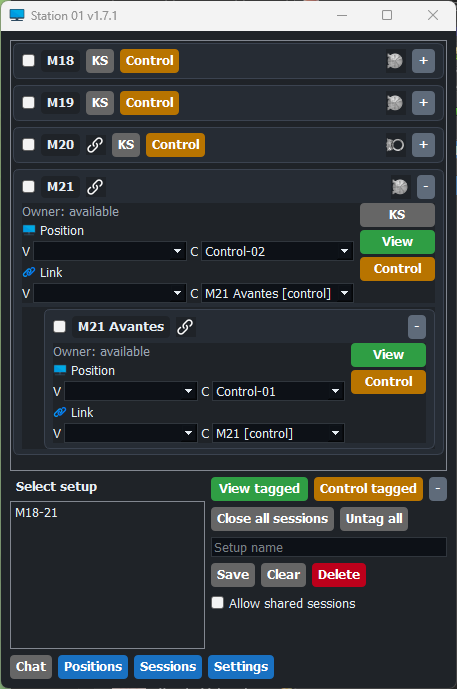
- Main Window Layout (Current)
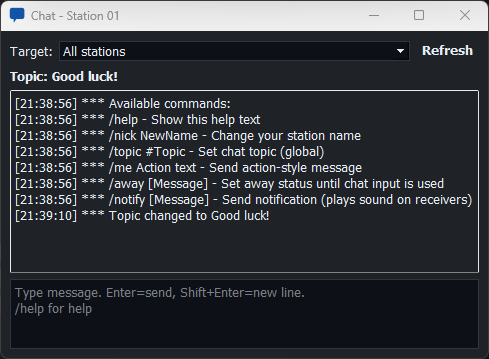
- Chat Commands
- Features (And Why They Exist)
- Custom Sensor Icon Guidelines
- Maintenance Tools
- Testing
- Packaging (Optional)
- How It Works (Short Technical Summary)
- TODO
- License
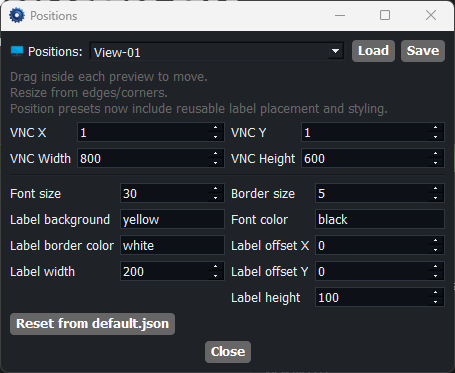
Current interface examples:
| Main Operator Window | Chat | Station Settings |
 |
 |
 |
| Session Editor | Position Editor | Documentation |
 |
 |
See the manual index for the current role-based guides, workflows, and reference material. |
Home Assistant integration is configured per session and can drive:
- row indicator icons
- binary true/false icon changes
- tooltip text
- alarm color rules for row indicators and session labels
See manual/advanced-user-guide.md for the current configuration workflow.
Manuals are split by role:
- Production users: manual/user-guide.md
- Advanced users: manual/advanced-user-guide.md
- Admin/deployment: manual/admin-guide.md
- Windows 10/11
- Python 3.x
- TightVNC Viewer executable
tvnviewer.exein repo root - Network where all control stations can exchange UDP traffic on one shared UDP port (default
50000, configurable inSettings) - The following folders in the project root:
vnc-view/(contains per-target.vncand optional.json)vnc-control/(contains per-target.vncand optional.json)vnc-positions/(contains reusable position.jsonpresets)vnc-setups/(contains saved setup.jsonpresets for positions/links)
VNC-Station/
  app/
  manual/
  vnc-view/
  vnc-control/
  vnc-positions/
  vnc-setups/
  Example files/
  tests/scripts/
  default.json
  default.local.json.example
  tvnviewer.exe
  requirements.txt
Note: vnc-view/ and vnc-control/ are intentionally git-ignored for station-specific files. The folders remain in the repo via .gitkeep.
Example files/README.md contains starter templates you can copy, rename and edit:
dummy.vncdummy.json
Suggested usage:
- Copy
dummy.vnctovnc-view/<TargetName>.vncand/orvnc-control/<TargetName>.vnc. - Open the copied
.vncin TightVNC Viewer and set host/password, then save. - Copy
dummy.jsonto matching<TargetName>.jsonif you want custom window/label defaults.
Informational reference in the same folder:
TightVNC-Viewer-Help.txt
git clone <your-repo-url>
cd VNC-Station
python -m venv .venv
.\.venv\Scripts\Activate.ps1
If PowerShell blocks activation:
Set-ExecutionPolicy RemoteSigned.\.venv\Scripts\python -m pip install --upgrade pip
.\.venv\Scripts\python -m pip install -r requirements.txt.\.venv\Scripts\Activate.ps1
python -m app.main- Keep
default.jsonsanitized for git. - Put machine-local secrets/overrides in
default.local.json(not tracked by git). - Start from
default.local.json.example. default.local.jsonoverridesdefault.jsonat runtime.- Keep
default.local.json.examplein repo root as template; do not move it.
Example default.local.json:
{
  "ha_url": "http://home.assistant.you:8123",
  "ha_api_key": "YOUR_REAL_HA_TOKEN",
  "keep_main_window_on_top": "true"
}
Safety notes:
default.local.jsonis ignored by git via.gitignore.- It will not be pushed unless force-added manually (
git add -f default.local.json).
Optional git hook setup (blocks committing real ha_api_key in default.json/default.local.json):
git config core.hooksPath .githooksUse tests/scripts/udp-port-test.ps1 to verify the configured UDP port (default 50000) works in both directions.
.\tests\scripts\udp-port-test.ps1 -Mode listen -Port <UDP_PORT>.\tests\scripts\udp-port-test.ps1 -Mode send -Port <UDP_PORT> -TargetIP <IP_OF_COMPUTER_B> -Message "Test from A"Then swap roles and test back from B to A.
If it fails, allow the configured UDP port in firewall (Admin PowerShell example for 50000):
New-NetFirewallRule -DisplayName "VNC Station UDP 50000" -Direction Inbound -Protocol UDP -LocalPort 50000 -Action AllowAlso make sure python.exe is allowed in Windows Defender Firewall.
- Place
.vncfiles invnc-view/and/orvnc-control/. - Start the app on one or more stations.
- (Optional) assign position presets with
Pos V/Pos C. - Use row
View/Controlbuttons to toggle one session at a time. - Use
View tagged/Control taggedto open or close tagged sessions per mode. - Use
Close all sessionsto immediately close every open local session. - Use
Edit View/Edit Controlfor per-session labels, links, VNC window wait timing, active paths, and HA sensor settings. - Use
Positionsfor visual position editing andSessionsfor per-session visual settings. - Use setup presets from the setup list on the lower left; click one to apply it immediately, drag to reorder it, and use
Setup name+Save/Clear/Deleteon the right. - Use
Clearto drop temporary setup/tag state and reload the persisted per-session settings, with rows minimized afterward. - Use
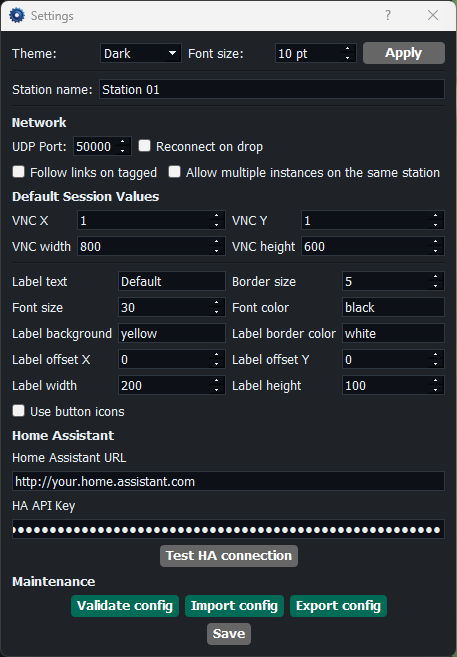
Settingsand runValidate config,Export config, orImport configfrom the Settings window. - Configure
Active Folder/Active Path/Fileand optionalActive Button Textin Edit dialogs or theSessionswindow; the active button(s) open the configured file, or the latest file in a folder, and the toast reports the full resolved path that was opened. - Use
Settingsto open app settings (theme, font size, station name,Use button icons, UDP port, reconnect-on-drop,Follow links on tagged,Keep main window on top, allow-multiple-instances option, defaults, HA URL/key, HA connection test, maintenance tools). - In
Edit View/Edit Control, add HA sensors and map icons (single icon or binary true/false icons), reorderSelected Sensorsby drag-and-drop, and optionally set binary state color rules. - In the HA sensor search field, press
Enterto search immediately and use wildcard patterns such as*m18*or*door*m18*.
Startup note:
- On launch, open actions are briefly locked while the app requests current session ownership from other stations.
- This prevents opening a session before ownership data is synchronized.
- Default startup size:
250x830(if no saved size exists in app settings) - Connection list is the resizable/scrollable section
- Lower setup/session area:
- left side:
Select setuptitle + draggable setup list - right side top row:
View tagged/Close tagged+Control tagged/Close tagged++/-all session cards Close all sessions+Untag allSetup nameSave+Clear+DeleteAllow shared sessions
- left side:
- Bottom row:
Chat+Positions+Sessions+Settings
/helpshow command help/nick NewNamechange station name/topic #Topicset global topic for all online stations/me Action textsend action-style message/away [Message]set away status (clears when the local station types in chat again)/notify [Message]send a notification message that plays sound on receiving stations
- Connection discovery from
vnc-view/andvnc-control/: quick setup by file drop. - Per-connection View/Control toggle buttons: open/close one mode from one button.
- Tagging + mode-specific tagged toggles: batch open/close tagged sessions by mode.
- Global close-all action: close every currently open local View/Control session with one click.
- Per-connection settings editor: tune session-owned settings such as label text, fixed positions, links, VNC window wait timing, active paths, and HA mappings.
- Position presets (
vnc-positions): reusable VNC geometry plus label placement, size, and visual styling. - Per-mode position assignment (
Pos V/Pos C): assign a preset to each view/control session. - Unique position assignment guard on View mode: prevents duplicate View position assignment.
- Per-mode session linking (
Link V/Link C): opens linked sessions together with view/control actions. - Linked close behavior: closing a session also closes linked sessions recursively (loop-safe).
- Linked rows in expanded view: linked child sessions render nested under the parent row instead of staying duplicated in the top-level list.
- Per-session
Active Folder/Active Path/Filebuttons with optional custom button text per mode. - When an Active Folder button opens a file, the toast reports the full resolved path.
- App-level
Settingswindow for theme, font size, station name, UDP port, reconnect-on-drop,Follow links on tagged,Keep main window on top, allow-multiple-instances option, defaults, HA connectivity, and maintenance tools. Keep main window on topoption: keeps the main operator window above other windows using the same top-most behavior as overlay labels.- Global settings persistence to JSON: station-level toggles such as reconnect, follow-links-on-tagged, keep-main-window-on-top, and allow-multiple-instances are saved in local JSON overrides as well as applied at runtime.
- Global
Use button iconspreference: show or hide button icons across the main window and utility windows. - Single-instance protection by default: blocks launching a second app instance on the same station unless explicitly enabled in settings.
- HA connection testing (
/api/) with toast feedback and success/fail button color feedback. Edit View/Edit ControlHA sensor search from Home Assistant (/api/states).- HA sensor search supports
Entersubmit and*wildcard patterns against entity IDs, names, and state text. - Per-sensor icon mapping: one icon for generic sensors, separate true/false icons for binary sensors.
- Per-sensor tooltip templates with
{name},{state}, and{entity_id}placeholders. - Drag-and-drop ordering in
Selected Sensors; icon display order follows the saved list order. - Binary sensor state color rules can color the icon display area and session overlay label background.
- Binary sensor state color rules do not change
View/Controlbutton colors. - Multi-icon row indicators: multiple mapped sensors can display side-by-side in each connection row.
- Animated GIF indicators supported in the main window.
input_boolean.*is treated as binary for true/false icon mapping.- Setup presets (
vnc-setups/*.json) store and restore selected positions and selected links. - Setup presets are shown in a draggable list, and custom list order is persisted across restarts.
- Last selected setup is persisted across restarts.
- Overlay labels that follow VNC windows: keep session identity visible on screen.
- Configurable initial VNC window wait and retry behavior: helps slower VNC servers finish creating the viewer window before placement is applied.
- Session lock awareness across stations: avoid accidental duplicate control/view.
- Optional shared-session override mode: allow opening a session already held by another station when needed.
- Reconnect on drop option in
Settings: automatically restore sessions after unexpected viewer exits. - Owner line age display scales from seconds to
m:ss,h:mm:ss, andd:hh:mm:ss. - Invalid per-session/default JSON is reported once in a toast and logged, while the app falls back safely to defaults.
- Built-in station chat: coordinate operators without external tools.
- Direct messages + broadcast chat: target one station or all.
- Notify messages with sound: raise attention only when explicitly requested.
- Global topic: keep all stations aligned on current context.
- Station nick/away visibility: improve operational awareness.
- Windows theme support (Auto/Light/Dark): keep UI consistent with operator environment.
- Main/Chat/Settings/Edit/Positions/Sessions windows restore last position+size on reopen.
- Session cleanup on app exit: avoid orphaned VNC processes.
- Config validation tool: catch missing/malformed files before operation.
- Config import/export bundles: replicate JSON and VNC files (including setup presets) between stations quickly.
- Open Settings window refreshes immediately after importing a config bundle.
- Non-blocking toast notifications: reduce modal interruptions during operation.
- Structured rotating logs in
logs/app.log: easier troubleshooting and post-incident review.
When adding your own status icons for HA sensors:
- File types: use
.pngor.gif - Background: use transparent background
- Recommended size:
256x256pixels - Location: place files in
app/images/(icon picker is restricted to this folder)
For binary-style entities (binary_sensor.*, input_boolean.*):
- use
Binary trueand/orBinary falseicon fields - if only one of true/false is set, icon is shown only for that state
Validate configchecks:- missing
tvnviewer.exe/default.json - malformed
default.local.json(if file exists) - malformed JSON in
default.json,vnc-view,vnc-control,vnc-positions, andvnc-setups - unknown keys and missing
.json/.vncpairings for view/control session configs
- missing
Export configbundles:default.jsondefault.local.json(if present)vnc-view/*.json+vnc-view/*.vncvnc-control/*.json+vnc-control/*.vncvnc-positions/*.jsonvnc-setups/*.json
Import configrestores the same set from bundle zip and refreshes the UI.Positionsopens the dedicated position editor:- movable frameless
VNC Previewwindow (cross-screen(s)) - movable/resizable frameless
Label Previewwindow using the default label text as a stand-in caption - saves reusable VNC geometry plus label offset, size, font, colors, and border settings into
vnc-positions/*.json
- movable frameless
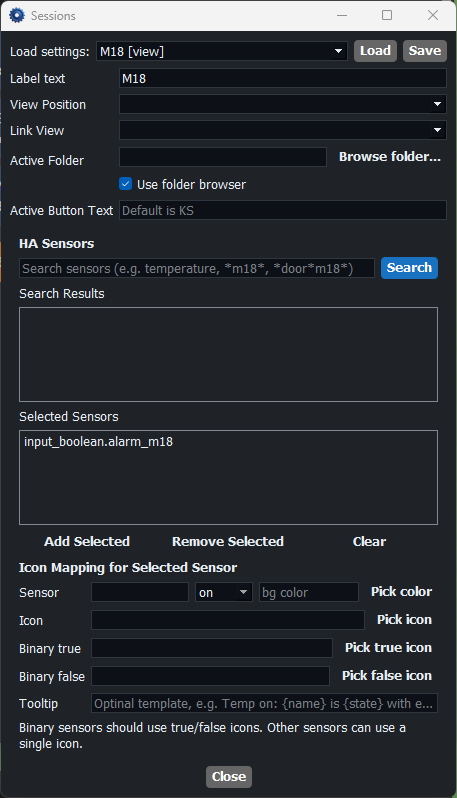
Sessionsopens the dedicated session editor:- loads the first available session automatically on open
Loadtarget selector (connection [view/control]) with default fallback if JSON is missing- edits per-session
label_text, mode-specificView Position/Control Position, mode-specificLink View/Link Control,window_wait_ms, active path/file settings, and HA sensor mappings - top
Savewrites the selected session JSON and persists the chosen position/link selector for the currently loaded mode - Active-path browsing supports folder mode or fixed-file mode from the same window
Active Button Textshows placeholder help:Default is KS
Run the included unit tests:
.\.venv\Scripts\python -m unittest discover -s tests -vBuild a distributable folder with PyInstaller:
.\packaging\build.ps1Note: packaging builds a windowed app (--windowed), so no black console window appears for users.
It also copies default.json, Updates.md, and the manual folder, leaves the runtime vnc-* folders empty for operator-supplied content, and creates a versioned zip such as dist/VNC-Station-Controller-1.7.3.zip.
Cleanup generated build artifacts:
.\packaging\cleanup.ps1- At startup, the app scans
.vncfiles invnc-view/andvnc-control/and builds one merged connection list. - Launching a session starts
tvnviewer.exe -optionsfile=<file.vnc>. - JSON settings are loaded per connection/mode (
<name>.json), with fallback todefault.json. - If a session has
position_nameset, that position preset overrides launchx/y/width/heightand the reusable label visual settings. - Initial VNC window positioning is attempted up to three times, waiting
window_wait_msbetween attempts; default is600. - Overlay label
label_x/label_yare treated as offsets from the VNC window top-left. - If a session has
linked_sessionset, linked sessions are auto-opened for View/Control actions. - Closing a session also follows
linked_sessionand closes linked sessions recursively. - A small always-on-top overlay label is created and periodically repositioned to follow the VNC window.
- Setup presets are loaded from
vnc-setups/*.json; applying a setup resets the live UI first, then applies saved positions/links without overwriting the session JSON files. Clearremoves setup-only UI state, reloads persisted session values from disk, clears temporary view assignments that are not fixed in session JSON, and minimizes the rows.- Stations communicate over UDP broadcast on the configured
udp_port(default50000):- presence discovery (
hello) - session open/close state
- chat/direct/notify messages
- global topic updates
- presence discovery (
- away status updates
- takeover notices
- Session lock logic prevents opening a connection already active on another station, unless
Allow shared sessionsis enabled. - The app stores UI preferences (theme, window sizes, font size, and related UI state) via Windows
QSettings, while station defaults and global settings toggles are persisted indefault.json/default.local.json. - At startup, the app performs a short session-sync handshake (
session_sync_request) before enabling open actions.
- Local language support
This project is MIT licensed (see LICENSE in the repository root).