


Jump to: Quick start · Everyday workflow (composing prompts, reading output, sessions, shortcuts) · Troubleshooting · Comparison · Advanced · Development

Pilish is an Emacs frontend for Pi, an open and extensible coding agent. A session runs in two windows: the conversation renders as Markdown in the top window, and you compose your next prompt in an ordinary Emacs buffer in the bottom one.
Because the prompt is a normal buffer, your editing habits apply directly. Write multi-line prompts, paste from other buffers, use the kill ring, keyboard macros, registers, spell checking, Evil, and anything else your setup gives you. You can keep writing while the answer streams in above, and scroll, search, and copy from previous output with the keys you already use everywhere else.
Pi’s own terminal UI and Pilish are two frontends to the same pi
CLI. Pilish talks to Pi over its JSON-RPC mode, so Emacs receives
structured messages and tool events rather than terminal output.
Model providers, sessions, skills, and prompt templates carry over
unchanged, and Pi extensions work with basic UI support (see
Extension support under Advanced).
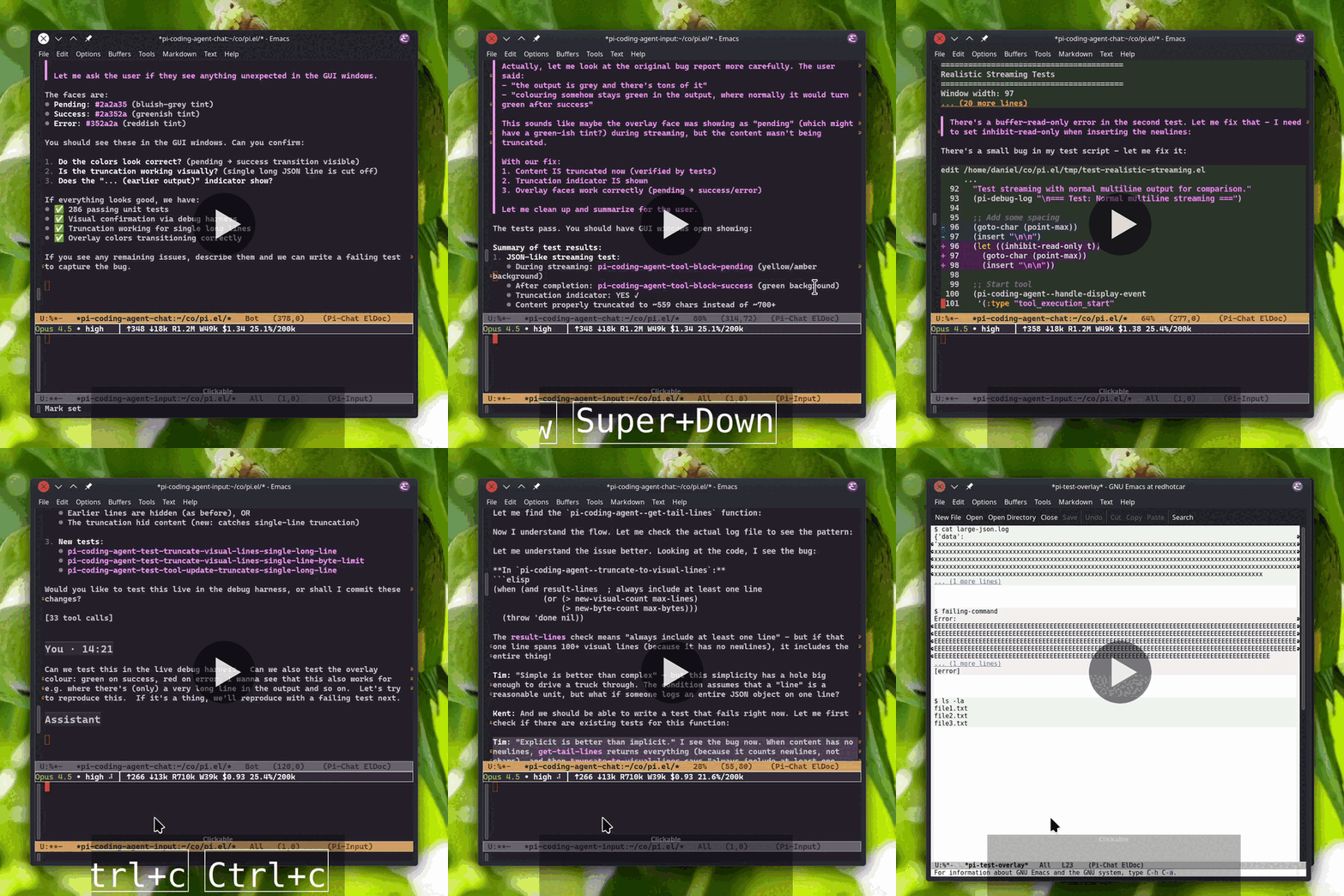
Video music: “Electrodoodle” by Kevin MacLeod (incompetech.com), licensed under CC BY 4.0.
If you already have Emacs 29.1 or later with tree-sitter support, this is the shortest path to a working session.
- Emacs 29.1 or later, built with tree-sitter support
- Node.js 22.19 or later for the Pi CLI
- pi coding agent
@earendil-works/pi-coding-agent@0.85.0or later, installed and inPATHon the host where Pi runs - Pi CLI authentication: a provider API key, or a one-time
/loginrun in a terminal (see below) - A C compiler if Emacs needs to compile tree-sitter grammars
Upgrade older Pi installations before using Pilish, for example with
npm install -g @earendil-works/pi-coding-agent@latest. Pi 0.85.0 or
later is required for run settlement, queue clearing, and compaction
abort handling; older protocol versions are not supported.
# Install the pi CLI
npm install -g @earendil-works/pi-coding-agent

# Or with mise
mise use -g npm:@earendil-works/pi-coding-agent@latest

# Authenticate the CLI: either set a provider API key (see below), or
# run `pi` interactively in a terminal and type `/login`.
Pi authenticates in one of two ways:
- Subscription or API key via
/login:/loginis interactive and unavailable from Emacs, so run plainpionce in a terminal and type/login; you can then pick a subscription such as ChatGPT Plus/Pro, or choose a provider and enter its API key. Credentials are stored in~/.pi/agent/auth.jsonand auto-refresh, so later Emacs sessions pick them up automatically. - Provider API key, no terminal login: export a provider
environment variable, e.g.
export ZAI_API_KEY=..., or add an entry to~/.pi/agent/auth.json. Pi supports many providers including DeepSeek, OpenAI, and Z.AI. See the providers documentation for the full set and its environment variables.
Either way, usage is billed as with any Pi frontend: per token by your provider, or covered by your subscription.
Install from MELPA. MELPA alone does not
resolve every dependency right now: its transient build needs
compat ≥ 31.0, which is only published on
GNU ELPA, so add GNU ELPA as a second
archive before installing:
(require 'package)
(add-to-list 'package-archives '("melpa" . "https://melpa.org/packages/") t)
(add-to-list 'package-archives '("gnu" . "https://elpa.gnu.org/packages/") t)
(package-refresh-contents)
Then install:
M-x package-install RET pilish RET
You may also define a shorter command name:
(defalias 'pi 'pilish)After that, M-x pi starts or focuses the current project’s Pi
session.
Run M-x pilish in the directory of a project you want to work on.
Pilish opens the two windows, and on first start it offers to install
the tree-sitter grammars needed for Markdown rendering — a one-time
step that needs a C compiler (gcc or cc); say yes so the chat
buffer renders properly.
Type a prompt in the bottom window — explain what this project does,
for instance — and press C-c C-c. Your text appears in the chat
under a You heading, and Pi’s reply streams in under Assistant.
The header line above the input tracks the model, activity phase,
cost, and context usage while it works.
One default worth knowing up front: Pi never shows its project trust
prompt in RPC mode, so Pilish starts Pi with --approve and
project-local .pi resources (skills, prompts, extensions) are active
right away. If you would rather rely on Pi’s saved trust decisions,
see pilish-project-trust-policy under Troubleshooting.
If no models are available or Emacs cannot find the pi executable,
the Troubleshooting section below has the fixes.
Upgrading from pi-coding-agent
pilish 3.0 is the renamed pi-coding-agent package (now
dnouri/pilish on GitHub). The
rename is a clean break: old configurations need a one-time update,
and old-name settings do not carry over automatically.
- Install
pilish, then delete the old package:M-x package-install RET pilish RET M-x package-delete RET pi-coding-agent RETComplete both steps before restarting Emacs: once the old package is deleted, an init file that still requires
pi-coding-agentfails with “Cannot open load file” and skips the rest of your config. (Skipping thepackage-deletebreaks nothing, but both command sets stay installed andM-x piruns whicheverdefaliasform comes last.) - Rename
pi-coding-agenttopilishin your init file: therequireoruse-packagedeclaration, thepialias, anypi-coding-agent-*variable names insetq,setopt, orcustom-set-variables, and anywith-eval-after-load, hook, or keybinding forms namingpi-coding-agentcommands. A missed old name raises no error at startup; it is silently ignored, so re-check your config after upgrading.(require 'pilish) (defalias 'pi 'pilish)
A session has two windows:
- Chat buffer (top) — the rendered Markdown conversation, including
tool output and thinking blocks from previous turns.
- Input buffer (bottom) — a normal Emacs buffer where you write the next prompt.
The input header line shows the current model, thinking level,
activity phase, cost and context usage, session name, and extension
status when available, plus the basename and size of an attached
prompt image. The model and thinking fields can be clicked to change
their values. After context usage, queued N counts the queued
messages Pilish knows about and hides at zero; hover it for previews
of pending follow-ups and steering messages. Pilish includes
backend queues only after Pi reports their contents, so the count
can lag, and follow-ups also include text waiting for prompt
acceptance. A count that reaches zero does not by itself mean the
work has finished.
Type in the input buffer and press C-c C-c (M-x pilish-send) to
send. If Pi is already working, the same key queues the text as a
follow-up and sends it when the current turn finishes. Press
C-c C-s (M-x pilish-queue-steering) while Pi is busy to send a
steering message: it is delivered after the current tool call and
interrupts the remaining queued tools. During compaction or while a
run is settling, C-c C-s queues a local follow-up instead, sent
when Pi is ready for another prompt. Press C-c C-k
(M-x pilish-abort) to abort the current response or compaction.
Press C-c C-p for the transient menu. It groups the remaining
commands — sessions, fork, compact, export, stats, model, thinking,
skills, and custom commands — and is the quickest way to discover
them.
If Pi works silently for five minutes, the input header says so, for
example thinking (no output 5m). That is a hint, not an error:
quiet tools and healthy subagents can produce no output at all. See
Troubleshooting for what the warning counts and how to tune or
disable it.
The input buffer is intentionally boring Emacs: every editing feature your setup already gives you works there. Your prompt stays in the bottom window while the conversation streams above it.
Press C-c C-p a i to attach one image: select a file, or paste its
path into the file prompt. Attaching another image replaces the
first, and C-u before the i clears it. Images are recognized by
content rather than extension (PNG, JPEG, GIF, WebP), the source
limit is 3 MiB, and the header keeps the attached name and size
visible. Send the image with a nonempty ordinary prompt while Pi is
idle and a vision-capable model is selected; the finer rules live
under Images in Advanced.
Slash commands work with completion: type / then TAB to complete
built-in commands and Pi commands such as prompt templates, skills,
and extension commands. Prompt templates are discovered from places
such as ~/.pi/agent/prompts/, and skills from
~/.agents/skills/. File references also complete: use TAB on
paths such as ./, ../, and ~/. Absolute paths complete too,
except for a bare / at the start of the buffer, where slash-command
completion wins.
While composing, you can page through the chat without leaving the
input buffer. Emacs’s built-in M-<prior> and M-<next>
(M+PageUp / M+PageDown) scroll the other window, and Pilish
registers the chat as the input buffer’s other-window-scroll-buffer,
so they scroll the linked chat. If your terminal does not send those
keys, C-M-v and C-M-S-v (the classic other-window scrolling
commands) work for the same reason.
The chat buffer renders Markdown with tree-sitter syntax highlighting
for code blocks and diffs. Long tool output collapses to a preview
so the chat stays readable; press TAB on a tool block to expand or
collapse it. Long-running commands stream output live, file
operations (read, write, edit) get syntax highlighting, and
edit diffs highlight what changed. Wide Markdown pipe tables are
wrapped and redrawn to fit the window while the underlying text
stays plain Markdown. Images sent with prompts and returned by
tools appear inline in graphical Emacs and as a type-and-size
placeholder in terminals; the limits are described under Images in
Advanced.
Hover completed replies, thinking, or tool blocks for timestamps and details:
reply provider/model and message-level token/cache usage, thinking line counts,
or short tool command/path hints. Native C-h . shows full help at point,
including in terminals. Stream durations, output rates, and tool timings are
approximate and live-only; reload or resume drops them.
Press RET on a file target to visit it: a file-content row in tool
output, a plain path reference, or the label of a local Markdown
link. Locations are honored — src/app.el:12:3 opens line 12,
column 3, and src/app.el#L12-L20 opens line 12 — and C-u RET
flips the window choice for that one visit (see
pilish-visit-file-other-window). Press ! on a file target to run
a shell command on it, Dired-style: a single command word plus
options, like wc -l or grep -n, gets the file appended
automatically, while anything else needs an isolated * where the
path belongs, as in grep -n TODO *. Press w to
copy the file’s shell-local path. The exact rules behind all three
live under File and command actions in Advanced.
Press TAB on a turn header (You or Assistant) to fold or unfold
that turn. Use n and p in the chat buffer to jump between user
messages, and f to fork the conversation from the turn at point.
The chat header ends with a summary line showing the pi and Pilish
versions plus skill and prompt-template counts. Press TAB on it to
expand sections listing context files, skills, prompt templates, and
extension commands, grouped by Project and User, with explicit paths
and unknown-scope resources kept separate; the extension section
lists registered commands. Names link to their source files and
carry descriptions when available, so you can explore what is on
offer before running anything from C-c C-p. TAB anywhere in the
details collapses the summary again.
Each project directory gets its own session automatically. Running
M-x pilish again from a Pilish buffer restores missing windows, or
focuses the input window when both are visible. M-x pilish-toggle
hides and shows the session windows in the current frame.
C-c C-r, /resume, or M-x pilish-session-browser opens the
session browser. It reads Pi’s session archive from disk —
~/.pi/agent/sessions/ by default, or $PI_CODING_AGENT_DIR/sessions/
— so browsing, searching, renaming, and deleting work with no live
process at all. Sessions with a currently live Pilish process in
this Emacs get a ● marker; the marker only sees Pilish processes in
this Emacs — sessions running in another Emacs or in a terminal are
not marked.
Press g to refresh markers. Press RET to switch to the session
at point, and ? for the browser menu. d deletes a closed session
only after a confirmation that names its displayed session title and
project. The configured delete-by-moving-to-trash action leads the
prompt; unsafe title, project, and child-name characters are sanitized
or replaced, while long metadata is ellipsized so the consequence stays
visible. Deletion acts on the selected archive pathname: if that entry
is a symlink, Emacs removes or trashes the link, not its target, while
canonical alias identity is used for live-session checks and child-fork
matching. If the full loaded archive snapshot contains direct child
forks, the prompt reports their count
(and up to three short titles): those files are not deleted. They
appear as roots if the parent no longer appears elsewhere in the
archive; their own descendants stay attached. Deletion does not
cascade. Pilish checks for a live session before and after the prompt,
but “live” means only a Pilish process in this Emacs, not a system-wide
process check. After confirmation it also rejects an observed canonical
retarget, such as a selected symlink that now resolves to another target.
This is observation, not locking: an independent writer can replace a
path without changing its canonical spelling, or change it between the
final check and delete-file. Cancelling or a deletion error leaves the
current browser snapshot in place; a successful deletion refreshes it.
The browser opens on this project’s sessions, showing all names in
the Threaded (fork families) view; t toggles between this project
and All projects. All-projects rows lead with a bounded project
token in a fixed-width field — the project directory’s name,
prefixed with the host for remote sessions (build-host:site) —
followed by the live marker, and only then connectors and the
session title, so identity and live status stay visible on narrow
terminals no matter how deep the fork nesting or how long the
titles. Projects sharing a directory name grow parent components
(client-a/app vs client-b/app) until distinct; labels that
cannot fit or distinguish fall back to an ordinal-front token
(#ORD app, with a compact base-36 ordinal); a session run in /
labels as /. Windows drive
and UNC working directories are recognized lexically, and
this-project rows carry no token because the scope already fixes
the project. s cycles the view:
- Threaded (fork families) — sessions grouped into fork families
through the
parentSessionlink that/forkand Pi’s/clonewrite; each parent renders above its children, and families are ordered by the latest activity anywhere in the family, newest first. - Recent activity — flat rows ordered by the session file’s modification time, newest first, under calendar Future / Today / Yesterday / This Week / Older headings: a late-night session moves to Yesterday at midnight, a clock-skewed future mtime groups as Future at the top, and on Monday last week reads as Older (Sunday stays Yesterday).
- Most messages — flat rows ordered by the number of persisted message records, tool results included, highest first.
Threaded families and Recent time groups can be folded without turning
these flat rows into nested Magit sections. TAB toggles the row itself
when it has displayed descendants; on a leaf it toggles the nearest
containing foldable row (a fork ancestor or Recent group). S-TAB folds
all outer families/groups, and C-u S-TAB unfolds everything. ^ goes
to the family root in Threaded or the group heading in Recent. Most
messages and queried Threaded results have no fold target or parent unit;
Recent queries keep their time groups. Folds survive rerenders and a
filter/search round trip; they are forgotten
when the corresponding session or group leaves the published snapshot.
n / p (and M-n / M-p) keep Magit’s flat section motion and skip
rows hidden by a fold.
Search results are always flat — a query never draws family
connectors. A queried Threaded (fork families) view orders the
rows newest-first; Most messages keeps its count ordering under a
query. These starting states are customizable:
pilish-session-browser-default-scope (this or all projects),
pilish-session-browser-default-view,
pilish-session-browser-default-named-only, and — for the tree
browser — pilish-tree-browser-default-filter. Each initializes a
browser buffer when it is created; a browser you have toggled keeps
its state when hidden with q and reopened. Killing the buffer, or
explicitly re-running the browser major mode, re-initializes from the
current defaults.
Search matches session names, first messages, and all saved
user/assistant text, including inactive branches; thinking, tool
arguments and results, images, and summaries are not searched.
Tokens are whitespace-separated regexps that must all match.
Searching a very large archive can pause Emacs while results are
gathered; q hides the browser without cancelling its scan. When
an empty listing or search result can be widened, it names up to two
of the most relevant keys: t switches scope, f clears named-only,
and submitting an empty / query clears the filter. An empty
All-projects archive has no
wider scope and intentionally shows no action hint.
The tree browser (C-c C-p w, or Context w in the menu) shows the
conversation tree Pi persists for a session. On its first load, point
starts at the current projected entry or its nearest visible active
ancestor, falling back to the first visible row when no active-path
row survives. @ marks the actual current entry and * marks its active
ancestors, so a filter that hides the current entry never mislabels an
ancestor as current. Moving point yourself wins on later refreshes;
when a selected row disappears, point first tries its nearest visible
ancestor from the old snapshot, then the new active path. TAB folds a
row with displayed descendants; on a leaf it folds the nearest displayed
ancestor that has descendants. S-TAB folds all outer roots and
C-u S-TAB unfolds everything; ^ moves to the nearest visible parent.
Fold state survives rerenders and filter/search round trips, including
when an id temporarily disappears and returns, and is pruned when that id
leaves the published tree. Point restoration never opens a user fold or
leaves point on an invisible row, and Magit’s n / p and sibling motions
skip folded rows. Switching
the linked chat to another session file resets this orientation even
when a fork shares node IDs with the old file.
Press RET to continue from the selected turn. Its behavior depends
on the selected projected node:
| Selected node | What RET does |
|---|---|
The @ current projected position | Strict no-op before live-process, busy/transition, disk, or draft checks. Trailing projected-away bookkeeping does not change its identity. |
Historical user prompt or user-like custom_message with a parent | Continues from the parent and prefills the selected prompt text when available. If that parent is already current, this is prefill-only; otherwise Pilish rewrites the active path and resumes the same session file. |
Historical root user prompt or root user-like custom_message | Has no parent to continue from, so Pilish refuses and points to the chat’s fork command. A root prompt that is itself @ remains the strict no-op above. |
| Non-current assistant, tool result, branch or compaction summary, model/thinking change, or other node | Continues from that node itself by rewriting the active path and resuming the same session file. Its prefill is applied when the navigation target provides one; most such nodes provide none. |
A continuation that would replace the input draft first checks the
existing input-buffer draft state: either nonblank text or an attached
prompt image triggers Replace the unsent draft ...?. Declining keeps
both text and image and occurs before any session-file rewrite or resume
is scheduled. Acceptance stays bound to the browser, linked chat, and
session file that opened the question, then re-runs the live-session and
disk/target checks. If that browser dies or its chat/file changes,
navigation is cancelled rather than reinterpreting the node ID in a new
tree; a same-file refresh remains valid. If the draft changes while the
question is open, Pilish asks about the newer draft instead. If a newer
nonempty draft appears during later yielding file-handler work, Pilish
keeps it and skips the prefill. Blank text with no image proceeds
without a prompt, and the @ no-op never prompts. This is a targeted
loss-prevention check, not a blanket confirmation on every RET.
For a path-changing continuation, Pilish preserves complete raw JSONL lines, writes the new order to a sibling temporary file, and replaces an ordinary local session file with one atomic rename before asking the normal resume flow to reload it. This is not cross-process locking: an independent Pi instance or external writer can still race the final validated read and rename. A TRAMP handler may yield and may implement rename as copy-and-delete, so remote replacement is not guaranteed to be atomic.
Pi’s TUI can optionally ask the model for a branch summary while its
own tree-navigation API changes branches. Pilish deliberately cannot
offer that option over Pi’s current RPC surface: RPC has observation
commands such as get_tree and get_entries, but no in-place
navigate command; its fork command creates a different session file.
Pilish fully displays branch_summary entries already persisted in the
session file, but invents neither an LLM call nor a hidden summary
workflow during navigation.
Legacy rows without IDs are visible but cannot be continuation targets;
open the file with Pi once to migrate it. Historical files with exact
repeats of the same nonempty-ID entry display that entry once. If the
same ID instead names different entries, the later entry is the one
shown, unrelated unique history remains usable, and the browser shows a
duplicate-ID warning. That ambiguous row has no @ or * marker and
cannot be labeled, used as a continuation target, or made a fold target.
Tree filtering runs after display projection. Projection first removes
raw label, session_info, and custom bookkeeping entries and
promotes their children to the nearest displayable ancestor. The five
filter contracts are:
default— projected entries except model and thinking-level changes;no-tools—defaultwithout tool results;user-only— user messages only;labeled-only— labeled nodes only;all— all projected, displayable content. It does not restore the raw bookkeeping records removed by projection.
Every filter also hides empty tool-dispatch assistant messages unless
aborted or carrying an error message. The shipped value of
pilish-tree-browser-default-filter is no-tools; changing that option
changes the initial filter for new (or explicitly reinitialized) tree
browser buffers. f cycles the filters. The ? transient lists all
five as direct choices (d, n, u, L, and a inside the menu), so
they do not depend on discovering the cycle order.
/ searches the semantic text of each projected node. Query tokens are
whitespace-separated Emacs regexps and every token must match the same
node. The corpus includes preview/message text, the label, role and
type, full branch and compaction summaries, tool name (plus selected
fields in built-in tool previews), and provider/model or thinking-level
metadata. It never serializes raw tool arguments or custom-tool JSON,
and binary/image and hidden thinking payloads never enter the projected
preview. The final filter-and-query result gets a newly derived visible
tree: hidden intermediates are bypassed and roots, nearest visible
parents, sibling connectors, indentation, and gutters all describe only
the rows on screen.
l sets or clears a label on a node. Labels appear in the node line for
keyboard discovery and search, and remain duplicated in the right
margin for quick scanning. Press g to refresh the last persisted
state. Display and refresh read the JSONL file from disk and still work
offline; changing position by continuing from a historical turn requires
the linked live, idle Pilish process.
The tree browser and forking answer different questions. Example:
after two turns you want to try a second approach. The tree browser
(Pi’s /tree) keeps both approaches as branches of the same
session file; RET continues the live conversation from the selected
turn on that branch. C-c C-p f (/fork, or Pi’s /clone) instead writes
a new session file whose header points back at the original, so
you get two independent sessions — and the session browser’s
Threaded (fork families) view shows that file relationship as a
family.
For multiple live sessions in the same directory, use
C-u M-x pilish and enter a name; this names the Emacs buffer pair,
not the persisted session. Rename the persisted session with r in the
session browser, C-c C-p N, or /name. Fork with C-c C-p f.
When the context window fills, compacting with C-c C-p c
summarizes the older conversation so the session can continue; Pi
can also compact automatically, and the header line changes face as
usage crosses the configured warning and error thresholds.
The main buffers:
| Key | Context | Description |
|---|---|---|
C-c C-c | input | Send prompt, or queue follow-up if busy |
C-c C-s | input | Send steering message while Pi is busy |
C-c C-k | input, chat | Abort current response or compaction |
C-c C-p | input, chat | Open the transient menu |
C-c C-r | input, chat | Browse sessions |
C-c C-p a i | menu | Attach or replace one prompt image |
C-u C-c C-p a i | menu | Clear the attached prompt image |
M-p / M-n | input | Prompt history (C-↑ / C-↓ also work) |
C-r | input | Incremental prompt-history search |
TAB | input | Complete paths and / commands |
M-<prior> / M-<next> | input | Scroll the linked chat window |
TAB | chat | Toggle summary line, thinking, tool, or turn |
RET | chat | Visit file target at point |
! | chat | Run shell command on file at point |
w | chat | Copy the shell-local file path |
n / p | chat | Navigate user messages |
f | chat | Fork from the turn at point |
q | chat | Quit session |
C-c C-n | chat | New session |
C-c C-e | chat | Export session to HTML |
C-c C-c | chat | Compact conversation context |
C-c C-m | chat | Select model |
C-c C-t | chat | Cycle thinking level |
C-c C-y | chat | Copy last message |
The browsers:
| Key | Context | Description |
|---|---|---|
RET | sessions | Switch to selected session |
RET | tree | Continue from selected turn |
TAB | sessions, tree | Toggle this row’s fold, or its nearest containing fold |
S-TAB | sessions, tree | Fold all outer units (C-u S-TAB unfolds all) |
^ | sessions, tree | Family root / group heading / nearest visible tree parent |
n / p | sessions, tree | Next / previous visible flat section (skips folded rows) |
/ | sessions, tree | Search with regexp tokens |
s | sessions | Cycle view: Threaded (fork families), Recent activity, or Most messages |
t | sessions | Toggle This project / All projects scope |
f | sessions | Named sessions only |
f | tree | Cycle filters; ? offers all five directly |
r / d | sessions | Rename a session / delete a closed one |
l | tree | Set or clear a label on a node |
g | sessions, tree | Refresh |
? | sessions, tree | Browser menu |
The browser rows stay flat, so Magit’s recursive cycle bindings
(C-c TAB, C-<tab>, M-<tab>) and level keys (1 through 4 and
their Meta variants) are intentionally unbound.
The transient menu (C-c C-p) collects the full command set — new
session, reload, name, export, quit, compact, fork, tree, model,
thinking, stats, and copy last — plus submenus for skills, prompt
templates, and extension commands. M-x pilish-toggle hides or
shows the session windows.
No models are available: authenticate the Pi CLI
Make sure the Pi CLI is authenticated before expecting models to
appear: set a provider API key, or run pi in a terminal once and use
/login. Then make the running session pick up the new credentials:
press C-c C-p R (or M-x pilish-reload) to restart the Pi
process without losing the conversation.
Emacs cannot find the pi executable
Pilish runs the command in pilish-executable,
which defaults to ("pi"). If Emacs cannot find pi, install the
CLI with the npm command from Quick Start on the host where Pi runs,
adjust the relevant search path, or customize
pilish-executable. An example:
;; npx users:
(setopt pilish-executable
        '("npx" "-y" "@earendil-works/pi-coding-agent@latest"))
If startup says something like env: node: No such file or directory,
Emacs found the Pi launcher, but that launcher uses /usr/bin/env node.
env searches the subprocess PATH, not only Emacs exec-path.
If you configure Node from init.el, update both:
(let ((node-bin "/home/you/.local/share/pi-node/node-v22.23.1-linux-x64/bin"))
  (add-to-list 'exec-path node-bin)
  (setenv "PATH" (concat node-bin path-separator (or (getenv "PATH") ""))))
Project-local .pi resources are not active
Pi does not show its project trust prompt in RPC mode. To make Emacs
sessions behave like the usual trusted project workflow,
Pilish passes --approve by default so project-local
.pi prompts, skills, settings, themes, and extensions are active.
Set pilish-project-trust-policy to default to pass no
trust flag and let Pi use its saved trust decisions and
defaultProjectTrust:
;; Let Pi decide project trust from ~/.pi/agent/trust.json
;; and its global defaultProjectTrust setting.
(setopt pilish-project-trust-policy 'default)
Set it to no-approve to pass --no-approve and ignore
project-local Pi files for Emacs sessions.
The header shows thinking (no output 5m)
While streaming or compacting, five minutes without output from Pi
changes only the existing input activity status, using Emacs’s
warning face; the phase stays visible. Idle and sending sessions
are not monitored, and hiding the input also hides the warning. The
warning never aborts, polls Pi, or changes session state.
Any nonempty parent stdout counts — ordinary replies, repeated tool progress, even partial or malformed output; stderr does not. Silence is not proof of a hang: quiet tools and healthy subagents may produce no parent output, while one sibling’s output keeps the shared clock fresh. Timing is approximate wall time, not an awake-time deadline — suspend, clock changes, or a blocked Emacs can shift it. Active sessions refresh the input header once a second when Emacs can service its timers.
pilish-session-inactivity-timeout defaults to 300 seconds. Use a
positive number to change the threshold, or nil to disable the
warning:
(setopt pilish-session-inactivity-timeout nil)Changes apply at the next header refresh; reenabling retains the
existing output age. Hover the status for help. To stop the
current operation and discard queued continuations, use C-c C-k
(M-x pilish-abort).
Tree-sitter grammar installation fails
Grammar installation needs a working C compiler. Install gcc or
cc, then run:
M-x pilish-install-grammars
If an old system Markdown grammar is loaded and tables render
incorrectly, remove the old libtree-sitter-markdown from
treesit-extra-load-path, your Emacs tree-sitter directory, or your
system packages, then restart Emacs or run
M-x pilish-install-grammars.
TRAMP projects run Pi on the remote host
When the current project is a TRAMP directory, Pilish
starts the Pi CLI on the remote host. Install pi there.
Authentication and configuration are remote too: run pi and /login
on that host, or set provider environment variables for the remote
process. Paths such as ~/.pi/agent/auth.json and absolute entries in
pilish-executable are interpreted on the host where Pi runs.
For Emacs to find the command on the remote host, its directory must be
in TRAMP’s remote search path; Emacs’s local exec-path is not used.
Use an absolute path in pilish-executable, or add the
executable’s absolute remote directory to tramp-remote-path:
(with-eval-after-load 'tramp
  (add-to-list 'tramp-remote-path "/home/you/bin"))
Emacs loads an old transient package
Emacs may load its bundled transient before the newer MELPA package.
If the menu complains about transient, set
package-install-upgrade-built-in to t, install or upgrade
transient (needs the GNU ELPA archive for its compat
dependency), and restart Emacs.
Pilish is a frontend for one agent: Pi. Pi is open source and extensible — many model providers including local and custom models, reusable skills, prompt templates, TypeScript extensions and custom tools, and an SDK. Pilish communicates with Pi over its JSON-RPC mode, receiving structured messages and tool events instead of driving a terminal UI; that is what makes the workflow above possible without embedding Pi’s terminal UI.
Pilish has real trade-offs: it is a young package, it needs the pi
CLI (and Node.js) on the host where sessions run, and it does not
talk to any other backend. Here is where each option fits:
pilish: best when you want the Pi runtime (providers, sessions, extensions, skills, templates, custom tools, and custom providers) with an Emacs-native user interface. It is not a general Emacs LLM library and not a universal shell for every agent; it is a focused frontend for Pi.- gptel and gptel-agent:
gptelis reusable Emacs LLM infrastructure: any-buffer chat and rewrites, file-backed chats, context attachment, multiple backends, tool use, MCP throughmcp.el, and APIs for custom workflows.gptel-agentis the agentic harness built on top of it, with local file tools, Bash, web tools, Emacs tools, confirmations, prompts, and sub-agents. - Aidermacs: an Emacs frontend for Aider. It runs Aider through
comintorvtermand adds Emacs commands for Aider sessions, explicit editable/read-only file context, repo-map refresh, code, ask, architect, and help modes,.aider.conf.ymlconfiguration, and Ediff review of AI-generated changes. - claude-code-ide.el: an Emacs integration for Claude Code CLI
through MCP. It starts Claude Code for the current project using
vterm,eat, orghostel, manages project sessions, tracks the active file and selection, exposes diagnostics and Emacs tools such as xref, tree-sitter, imenu, project, and custom Elisp functions, and shows proposed edits through Ediff. - agent-shell: a native Emacs shell for ACP-driven agents. It
relies on
acp.eland works with agents such as Gemini CLI, Claude Agent, Auggie, Mistral Vibe, GitHub Copilot, and Pi through thepi-acpadapter. It is the broader choice when one Emacs UI should talk to several ACP agents. - eca-emacs: the Emacs client for the ECA server. It connects to
an external
ecaprocess and provides dedicated chat buffers,@-context, chat/tool approval commands, model and agent selection, MCP settings, inline completion, rewrite overlays, and diff or Ediff review.
This section is reference material: changing defaults, managing grammars yourself, using extension features, the exact rules behind chat file actions, and installing from source.
Here are some common non-default preferences:
;; Collapse completed thinking in new chats; live thinking still streams:
(setopt pilish-thinking-display 'hidden)

;; Make the input window 25% of the session's window pair;
;; rebalanced on frame resize:
(setopt pilish-input-window-height 0.25)

;; Copy source Markdown from the chat buffer instead of only visible text:
(setopt pilish-copy-raw-markdown t)

;; Request the native same-window opener for chat file targets;
;; use C-u RET to invert this request for one visit.  Emacs display policy
;; may redirect final placement:
(setopt pilish-visit-file-other-window nil)
The input window has three display styles — pick one:
;; Keep both windows visible whenever the session is shown (the default):
;; (setopt pilish-input-window-display 'always)

;; Show the input pane when a session launches and while composing;
;; hide it after each send and reopen it with M-x pilish-open-input:
(setopt pilish-input-window-display 'on-demand)

;; Start sessions with only the chat window visible; open the input on
;; demand (M-x pilish-open-input, or `i'/`a' under Evil) and have it
;; hide again after each send:
;; (setopt pilish-input-window-display 'hidden)
Less common tuning knobs:
;; New input buffers use plain text instead of Markdown highlighting:
;; (setopt pilish-input-markdown-highlighting nil)

;; Show more tool output before it collapses, counted in visual lines:
;; (setopt pilish-tool-preview-lines 20)
;; (setopt pilish-bash-preview-lines 10)

;; Lower the 3 MiB source limit for an outgoing prompt image:
;; (setopt pilish-prompt-image-max-bytes (* 2 1024 1024))

;; Cap inline image previews to 640 pixels as well as the chat window width;
;; lower the 10 MiB per-image preview-source limit if desired:
;; (setopt pilish-image-preview-max-width 640)
;; (setopt pilish-image-preview-max-bytes (* 5 1024 1024))

;; Lower context warning/error colors in the header line:
;; (setopt pilish-context-warning-threshold 40)
;; (setopt pilish-context-error-threshold 60)

;; Keep more recent turns live for table rewrapping and tool overlays;
;; older history is cooled to keep long sessions fast:
;; (setopt pilish-hot-tail-turn-count 5)

;; Let Pi's saved project trust decisions decide whether .pi resources load:
;; (setopt pilish-project-trust-policy 'default)

;; Hidden thinking uses generic line-count stubs instead of first-line previews:
;; (setopt pilish-thinking-hidden-preview nil)

;; New browser buffers can start elsewhere; existing browsers keep
;; their toggled state (see the Sessions and context section):
;; (setopt pilish-session-browser-default-scope 'all)
;; (setopt pilish-session-browser-default-view 'recent)
;; (setopt pilish-session-browser-default-named-only t)
;; (setopt pilish-tree-browser-default-filter 'default)
You can also inspect the whole customization group with:
M-x customize-group RET pilish RET
Optional Evil keybindings ship in pilish-evil.el, modeled on
how Evil and Magit cooperate: the read-only chat buffer starts in
motion state so navigation keys just work, the input buffer starts in
insert state, and ? opens the transient menu. It loads
automatically when a session is set up while Evil is in use; to opt
out, set this before loading the package:
(setq pilish-evil-integration nil)Chat buffer (motion state):
| Key | Action |
|---|---|
n / p | next / previous message |
f | fork session at point |
w | copy shell-local file path at point |
TAB | toggle tool/thinking section |
RET | visit file at point |
i / a | focus input (a goes to end of input) |
? | transient menu |
q | quit session |
Input buffer (normal state):
| Key | Action |
|---|---|
RET | send |
q | close input window |
? | transient menu |
Session and tree browser buffers start in motion state as well. Evil’s
j / k move line-wise; Magit’s section motions remain on n / p
(and M-n / M-p) and skip folded rows. TAB / S-TAB and ^ use
the browser folding and parent commands described above. In the session
browser RET switches to the selected session; in the tree browser it
continues from the selected turn. Every documented browser key — views,
filters, folding, parent motion, search, scope, rename, delete, refresh,
dispatch, RET — is rebound in motion state so the Evil and evil-collection
keymap stack never swallows them (evil’s
motion state owns /, ? and the g prefix; evil-snipe’s f / t
are disabled in these buffers, mirroring the chat buffer’s f fork
binding).
Setup also sets pilish-copy-raw-markdown buffer-locally in
chat buffers, so that yanking preserves code fences and markup without
changing the global default. Each part can be tuned independently
before loading:
;; Different initial states:
(setq pilish-evil-chat-state 'normal)

;; Open and focus the input window in normal state instead of insert
;; (press i to start composing, RET sends, q closes the window):
(setq pilish-evil-input-state 'normal)

;; Run the browsers in emacs state instead of motion:
(setq pilish-evil-browse-state 'emacs)

;; Keep copying only visible text instead of raw Markdown:
(setq pilish-evil-copy-raw-markdown nil)
User bindings made after pilish-evil-setup runs (e.g. with
evil-define-key or Doom’s map!) take precedence over these
defaults, and M-x pilish-evil-setup re-applies them after
changing options.
With evil-snipe (enabled by default in Doom): its minor-mode keymaps
shadow the chat buffer’s f binding, so setup turns the snipe minor
modes off in chat buffers via evil-snipe’s mode hooks — the same
outcome magit-mode gets from its entry in
evil-snipe-disabled-modes, and effective regardless of load order.
Fork stays on f, char-finding remains available on F, t, and
T, and snipe stays active in the input buffer. Set
pilish-evil-disable-snipe to nil to keep snipe active in
chat buffers.
New chat buffers inherit pilish-thinking-display. The
default is visible: live thinking streams while the assistant is
working and remains expanded when that thinking block finishes. Use
C-c C-p h to change the current chat, or C-c C-p H to change the
default for future chat buffers in the current Emacs session. To make
that default persist across restarts, set
pilish-thinking-display in your init file or via
M-x customize-option.
Press TAB inside completed thinking to toggle that block locally.
Pipe tables in the chat buffer are beautified as a display-only view.
Recent tables re-wrap automatically when the chat window width
changes. Older history stays frozen at its previous width to avoid
expensive whole-buffer redisplay on every resize. Tool blocks in
older history also lose their expand/collapse buttons and syntax
highlighting, keeping long sessions fast. Customize
pilish-hot-tail-turn-count to choose how many recent
You and Assistant turns stay live.
Prompt images are read and materialized when attached, and sent as
stored bytes without resizing or format conversion. Image-bearing
drafts can be sent only as direct prompts while Pi is idle: they are
not queued while Pi is busy, not used as steering messages, and not
combined with slash commands; a refusal preserves both the prompt
text and the image. The default source limit is 3 MiB
(pilish-prompt-image-max-bytes). Files are read by Emacs, so an
Emacs-readable path may use a file-name handler such as TRAMP — Pi
receives the encoded bytes, never the path (remote reads depend on
the configured handler and are not broadly tested). Clipboard image
extraction, automatic detection of paths typed into the prompt, and
multiple attachments are deferred.
Inline display: image content in sent user turns and completed tool
results renders inline in graphical Emacs and as a type-and-size
placeholder in terminals; sent and returned images share the same
bounded renderer. Pi’s built-in read already returns raster images
as image content, resized to at most 2000x2000. For SVG, a returned
preview is made only from complete, standalone SVG text supplied by
read;
Pilish never reopens the argument path, and text with obvious scripts
or external resources is left as text. Images in partial tool updates
appear when the final result arrives. Unresized prompt images and
custom tools can supply animated or highly compressed data whose
decoder cost is not bounded by the source-byte cap; the preview
settings in Configuration bound what renders. Moving a
terminal-rendered chat to a GUI, resizing previews, or applying a
later extension replacement may require a toggle or history reload.
To open an existing Pi JSONL session file directly, run:
M-x pilish-open-session-file
This opens the file as a live Pi session in the normal chat/input UI,
not as a static viewer. In Dired, it defaults the prompt to the
regular file at point. From a buffer visiting a local readable
.jsonl file, it defaults to that file.
You can save the chat buffer like any other buffer to keep a Markdown
transcript on disk. Saving does not interrupt or replace the live Pi
session. For a shareable export, use HTML export from the menu
(C-c C-p e) or run /export.
These are the exact rules behind RET, !, and w in the chat
buffer.
RET opens one strict file target at point: a file-content row in
tool output, a plain path reference, or the label of a local Markdown
link. Tool headers, fences, preview hints, and other non-content rows
do not open files. Plain locations such as src/app.el:12:3 visit
their one-based physical file line and optional one-based column; a
range such as src/app.el#L12-L20 visits its first line only. If an
explicit location is outside an existing narrowing, the default
widen-automatically policy widens the file. Coordinates apply only
to file-visiting buffers; directory targets retain native Dired point
and marks. A target without a location keeps the point, mark, and
narrowing chosen by normal Emacs file visiting. By default Pilish
requests the native other-window opener; C-u RET inverts
pilish-visit-file-other-window for that visit, and Emacs display
policy may redirect the final placement.
! runs one strict file target through a shell command,
Dired-inspired. One command word followed only by
whitespace-delimited options beginning with - receives the quoted
target appended automatically, so wc -l and grep -n work as-is.
All other command text — ordinary arguments, compound/control syntax,
multiple lines — must place a textual isolated * (bounded by a
space, tab, or string edge) where the target goes: grep -n TODO *,
head -20 * | less. A final whitespace-delimited & uses the usual
asynchronous shell output. Prompting and execution use a snapshot of
the target session’s local or TRAMP execution environment.
w copies the same shell-local path that ! operates on. Local
paths are absolute; paths in remote sessions use the remote shell’s
namespace without an Emacs TRAMP prefix. Line, column, range, and
link-fragment metadata are excluded, and the kill-ring value is the
literal, unquoted pathname, so spaces remain spaces and no @ prompt
marker is added.
Pilish has basic support for Pi extensions. Extension commands show up in slash completion and the transient menu, extension tools run normally, and extensions can use notifications, confirm/select/input prompts, prefill the input buffer, and show status text.
Rich TUI-specific extension UI is not supported in Emacs yet: custom
widgets, custom editor components, custom headers/footers, and other
component-based views are unavailable or fall back. Hover extension
status text in the header line to see the exact statusKey, which you
can use to change the font for that extension’s status text using
pilish-extension-status-faces.
Pilish uses Emacs’s built-in tree-sitter support to render
Markdown and highlight code blocks in the chat and input buffers. The
two essential grammars are markdown and markdown-inline. Optional
grammars such as python, javascript, rust, and go improve
syntax highlighting inside code blocks.
On first session start, Pilish prompts to install the
essential grammars. If you decline that prompt, it appears again next
time until the grammars are installed or you change
pilish-essential-grammar-action. A separate optional
prompt offers additional grammars for syntax highlighting inside code
blocks. Declining the optional prompt is remembered and it appears
again only if new grammar recipes are added or you clear
pilish-grammar-declined-set.
To check which grammars are installed or install them later:
M-x pilish-install-grammars
If you manage tree-sitter grammars outside of Emacs, for example
through a system package manager, set
pilish-essential-grammar-action to warn to suppress the
essential grammar prompt:
(setopt pilish-essential-grammar-action 'warn)
For custom UI changes tied to activity, add functions to
pilish-activity-phase-functions. Each function receives:
(CHAT-BUFFER INPUT-BUFFER OLD-PHASE NEW-PHASE REASON)NEW-PHASE is one of thinking, replying, running, compact, or
idle. REASON explains why the phase was applied:
| Reason | Meaning |
|---|---|
phase-change | The session activity phase changed. |
reset | A session reset forced idle. |
teardown | Session teardown forced idle. |
input-link | A newly linked input should apply the phase. |
input-unlink | An old input should clean up local UI state. |
Handlers should be idempotent. Pilish may reapply the same
phase when buffers are relinked, reset, or torn down. INPUT-BUFFER
may also be nil or dead during teardown.
As an example, consider tinting the input buffer while the session is busy:
(defvar-local my-pi-input-tint-cookie nil)

(defun my-pi-tint-input-while-busy (_chat input _old new _reason)
  (when (buffer-live-p input)
    (with-current-buffer input
      (when my-pi-input-tint-cookie
        (face-remap-remove-relative my-pi-input-tint-cookie)
        (setq my-pi-input-tint-cookie nil))
      (unless (string= new "idle")
        (setq my-pi-input-tint-cookie
              (face-remap-add-relative
               'default :background "gray20"))))))

(add-hook 'pilish-activity-phase-functions
          #'my-pi-tint-input-while-busy)
Another example: Notify when a real session turn finishes. The
REASON check matters: input relink cleanup also applies idle to
the old input, but that does not mean Pi finished working.
(defun my-pi-message-when-done (chat _input old new reason)
  (when (and (eq reason 'phase-change)
             (not (string= old "idle"))
             (string= new "idle"))
    (message "Pi finished in %s" (buffer-name chat))))

(add-hook 'pilish-activity-phase-functions
          #'my-pi-message-when-done)
Track busy sessions for your own mode-line or tab display:
(defvar my-pi-busy-sessions nil)

(defun my-pi-track-busy-sessions (chat _input _old new reason)
  (when (memq reason '(phase-change reset teardown))
    (setq my-pi-busy-sessions (delq chat my-pi-busy-sessions))
    (unless (string= new "idle")
      (push chat my-pi-busy-sessions))
    (force-mode-line-update t)))

(add-hook 'pilish-activity-phase-functions
#'my-pi-track-busy-sessions)MELPA (with GNU ELPA added for compat)
installs transient, magit-section, md-ts-mode, and
markdown-table-wrap automatically. Pilish uses md-ts-mode only for its own
chat and input buffers, so installing or loading this package does not
change how unrelated .md files open. If you want tree-sitter
Markdown globally, configure md-ts-mode separately.
With use-package (after the archive setup from Quick start):
(use-package pilish
  :ensure t
  :init (defalias 'pi 'pilish))
On a fresh Emacs installation, run M-x package-refresh-contents
once before restarting: use-package’s :ensure t can only install
pilish after the archive index has been downloaded.
For a plain Git checkout, configure the MELPA and GNU ELPA archives as shown in Quick start, then evaluate this once to install the external dependencies:
;; Must be set before installing/upgrading Emacs's bundled transient.
(setq package-install-upgrade-built-in t)

(package-install 'transient)
(package-install 'magit-section)
(package-install 'md-ts-mode)
(package-install 'markdown-table-wrap)
Then clone the repository and add it to your load path:
git clone https://github.com/dnouri/pilish ~/.emacs.d/site-lisp/pilish(require 'package)
(package-initialize)
(add-to-list 'load-path "~/.emacs.d/site-lisp/pilish")
(require 'pilish)Or with use-package after installing the dependencies above:
(use-package pilish
  :load-path "~/.emacs.d/site-lisp/pilish"
  :init (defalias 'pi 'pilish))
If you prefer not to install the Pi CLI globally, point
pilish-executable at npx instead; see the example in the
Troubleshooting entry about finding the pi executable.
Most users can skip this section. It is for contributors and local package development.
The shared integration tests have two lanes:
- a fast fake-pi lane for deterministic RPC-boundary checks
- a real pi lane for backend compatibility coverage
The default local integration target runs the fake lane first and the real lane second, so it still needs Docker for the real lane. The GUI suite is fully fake-backed and does not need Docker or a local pi install.
# Byte-compile, lint, and unit tests
make check

# Shared integration contract: fake first, then real
make test-integration

# Fast integration lane against the fake-pi harness only;
# needs neither Docker nor a pi install
make test-integration-fake

# Real pi lane only; starts the project-local Ollama Docker container
make test-integration-real

# Run a single integration contract by selector
make test-integration-fake SELECTOR=rpc-smoke
make test-integration-real SELECTOR=steering-contract

# Deterministic GUI tests (fake-backed, no Docker or local pi install)
make test-gui

# Run one GUI regression by selector
make test-gui SELECTOR=tool-overlay-bounded

# All tests
make test-allRun the harness directly when debugging the subprocess contract itself. These commands start an interactive JSONL peer on stdin/stdout.
# Basic prompt lifecycle scenario
uv run --script test/support/fake_pi.py --scenario prompt-lifecycle

# Extension dialog scenario with a longer manual timeout
./test/support/fake_pi.py --scenario extension-confirm --extension-timeout-ms 10000
Scenario fixtures live under test/fixtures/fake-pi/.
The GUI suite is deterministic and fake-backed. By default it auto-detects whether to show a window or run headless.
# With a display available, runs with visible window
./test/run-gui-tests.sh

# Run one visible regression directly
./test/run-gui-tests.sh pilish-gui-test-scroll-auto-when-at-end

# Force headless even with display available
./test/run-gui-tests.sh --headlessGitHub Actions runs on every push:
test-unit.yml- Unit tests across Emacs 29.4, 30.1, and snapshot (31)lint.yml- Byte-compile, checkdoc, and package-lint across Emacs 29.4, 30.1, and snapshottest-integration.yml- Split fake/real integration jobs; fake stays fast, real keeps Ollama compatibility coveragetest-gui.yml- Deterministic fake-backed GUI tests with xvfb virtual framebuffer
The real integration workflows use Node 24. Nightly builds keep real integration coverage against the pinned pi version (from Makefile) and latest, while the fake-backed GUI suite runs once.
- pi.dev: pi coding agent home page
GPL-3.0-or-later. See LICENSE.